> ## Documentation Index
> Fetch the complete documentation index at: https://getlago.com/docs/llms.txt
> Use this file to discover all available pages before exploring further.
# Finance invoice workflow
> Review Lago invoices, track collection, export line items, and connect accounting or AI analysis.
Finance can review billing in the Lago app without running the billing service. Lago Cloud hosts the application; your team still defines billing rules and configures the payment and accounting connections it uses.
## From invoice to reconciliation
1. **Review the invoice.** In **Invoices**, filter by customer, status, issuing date, overdue state, payment status, or billing entity. Open the invoice and compare its subscription, usage fees, tax, discounts, and credits with the agreed terms. Use the [invoice preview](/docs/guide/invoicing/previews) before issue when the Premium preview endpoint fits your workflow.
2. **Check collection.** A [payment-provider integration](/docs/guide/payments/payment-providers) can initiate payment and update the invoice's status. Inspect failed or overdue payments in the [cash collection reports](/docs/guide/analytics/cash-collection/dunnings); payment processing itself happens with the connected provider.
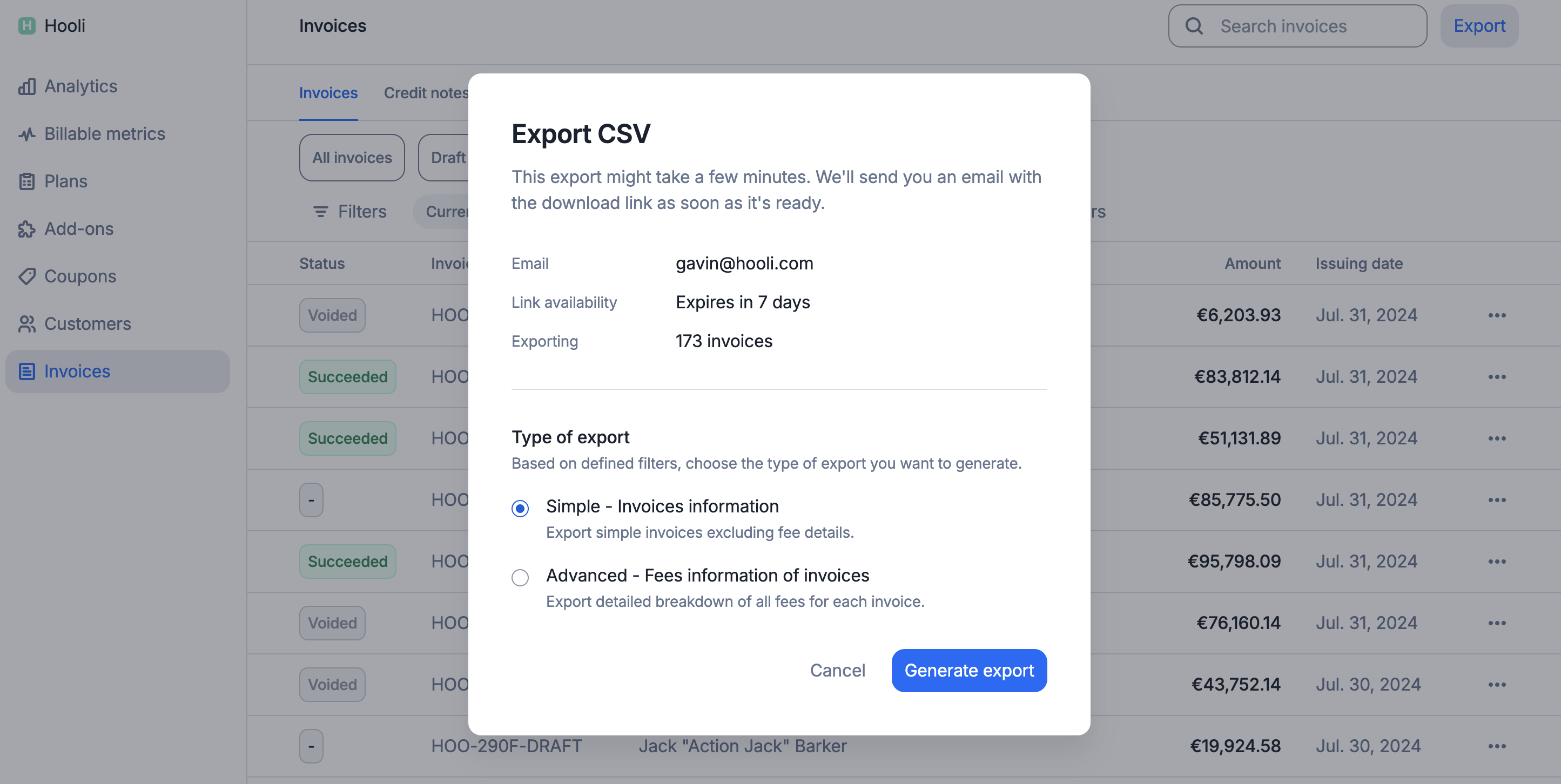
3. **Export what Finance needs.** [Export invoices](/docs/guide/invoicing/export) as one row per invoice or one row per fee. Filter before export and reconcile totals by currency and billing period. The [analytics overview](/docs/guide/analytics/overview) explains report definitions and update timing; its billing metrics are distinct from revenue recognition.
4. **Connect accounting.** Lago documents [NetSuite](/docs/integrations/accounting/netsuite) and [Xero](/docs/integrations/accounting/xero) integrations, each available on request. [QuickBooks](/docs/integrations/accounting/quickbooks) uses a community-maintained n8n workflow. Check the data direction, field mapping, availability, and reconciliation method for your chosen system.
5. **Investigate exceptions.** The **[Finance Assistant (Beta)](/docs/guide/ai-agents/finance-assistant)** can answer read-only questions in the Lago app or through the [Lago MCP Server](/docs/guide/ai-agents/mcp-server) in an MCP-compatible client. Review AI-generated figures against the app, export, or API before using them in financial reporting. Access follows the API key's data scope, so control who can use the assistant.
 If your team needs accrual-basis reports, review the separate [revenue recognition documentation](/docs/guide/revenue-recognition/overview) and its current availability. Billing and collection reports do not replace a financial close or an independent reconciliation.
This documentation is built and hosted on [Mintlify](https://mintlify.com), a developer documentation platform.
If your team needs accrual-basis reports, review the separate [revenue recognition documentation](/docs/guide/revenue-recognition/overview) and its current availability. Billing and collection reports do not replace a financial close or an independent reconciliation.
This documentation is built and hosted on [Mintlify](https://mintlify.com), a developer documentation platform.