

PREMIUM FEATURE ✨Only users with a premium license can automatically send emails from Lago to their customers. Please contact us to get access to Lago Cloud and Lago Self-Hosted Premium.
SMTP setup on Lago Cloud
Lago handles SMTP settings for you. Custom SMTP is available for Enterprise customers.SMTP setup on Lago Self-hosted Premium
To use the email feature, configure your environment variables as described here.Prerequisites for sending emails
To send emails to your customers, you will need to:- Define an organization email in Settings > [Your billing entity] > General > Information;
- Optionally, add your organization’s logo;
- Turn on the relevant email scenarios in Settings > [Your billing entity] > Email scenarios;
- Define the customer’s email address during customer creation/edition;
- To send invoices to multiple recipients, define multiple email addresses at the customer level, separated by commas.
(e.g.
billing@acme.com,accounting@acme.com,finance@acme.com)
Email scenarios
Lago automatically sends email notifications to your customers in three key scenarios:- When an invoice is finalized (including subscription invoices, one-off invoices, or credit purchase invoices);
- When a payment receipt is generated for a successful payment; and
- When a credit note is issued to adjust or refund an invoice.
- Go to Settings;
- Open the Email scenarios tab;
- Toggle each scenario on/off; or
- Click on a scenario to see the corresponding email; and
- Use the toggle in the upper-right corner to switch this scenario on/off.
To avoid sending too many notifications to customers, Lago does not email invoices without fees.Although invoices with
"fees_amount_cents": 0 are not sent to customers by email, they are available in the database and user interface.Email locale
The content of the email is based on the organization or customer’s document locale. The email uses the same locale as the invoice it accompanies.Email sending address
For the cloud version, Lago uses no-reply@getlago.com as the sending email address. Customer replies go to the email address you set for your organization in the organization settings.Email template
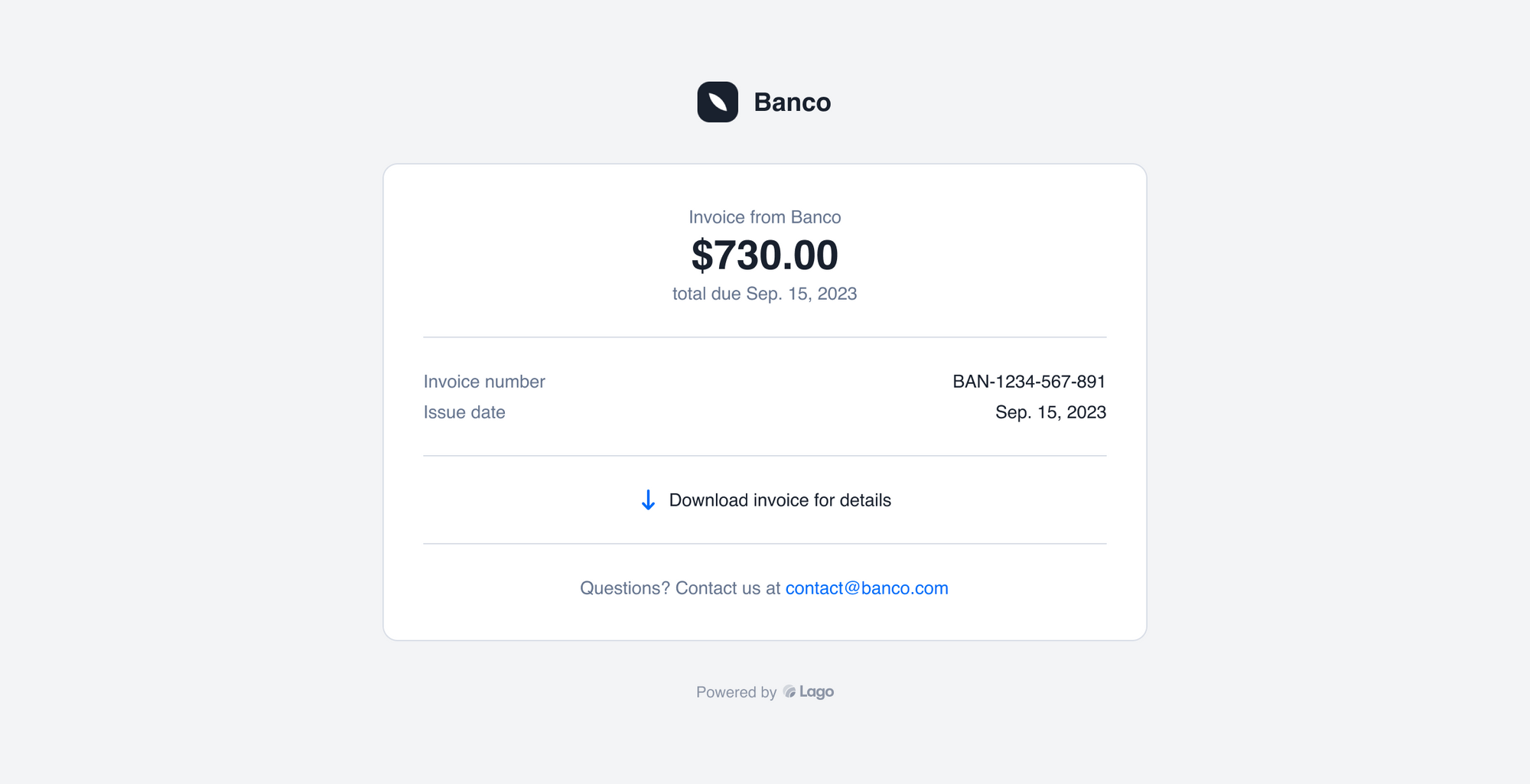
Email template
- The logo of your organization;
- The name of your organization; and
- The email address of your organization.
Resend emails
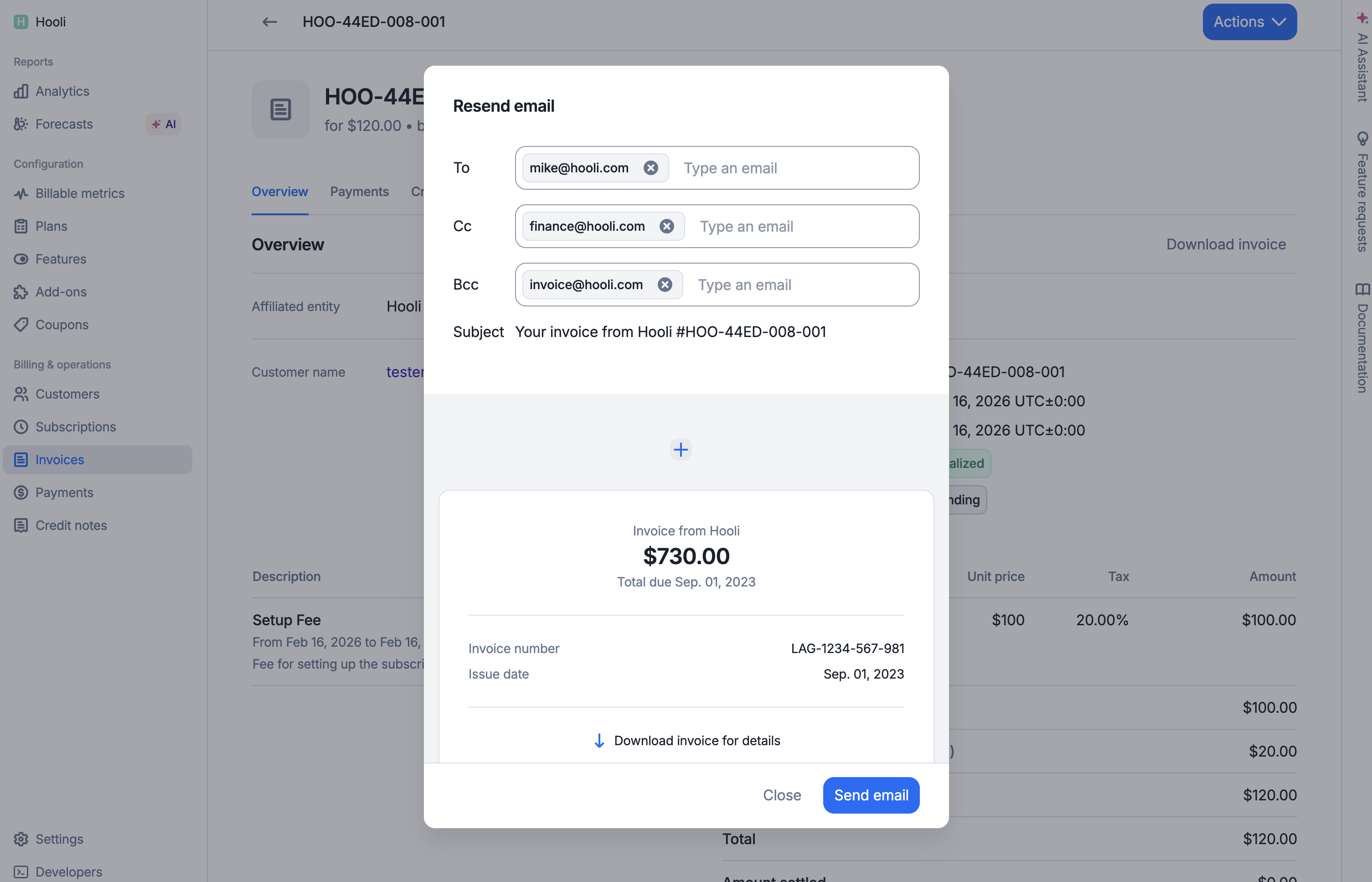
You can resend an invoice, credit note, or receipt email, and choose the recipients. To resend an email:- Navigate to the specific invoice or credit note you want to resend;
- Click on the Resend email button in the Actions menu;
- In the dialog that appears, customize your recipients:
- To: Enter the main recipient email addresses
- CC: Add any recipients who should receive a copy
- BCC: Add any recipients who should receive a blind copy
- Click Resend to send the email to your selected recipients.
You can send the email to different recipients than the original email. This is useful when you need to forward invoices to different departments or team members.
Resend emails