Subscriptions in the incomplete state are held by an activation rule. They cancel on their own if the rule fails or its timeout is reached, and you can also cancel them on demand.
Dashboard
API
To terminate an active subscription through the user interface:
Access the “Customers” section via the side menu;
Select a customer from the list;
In the “Overview” tab, select an active subscription; and
Generate a closing invoice at subscription termination
By default, Lago automatically generates a closing invoice for any outstanding usage-based charges or pay-in-arrears subscription fees that haven’t yet been invoiced.
If you don’t want to generate an invoice at termination:
Dashboard
API
In the Termination dialog, switch off the Generate a final invoice on termination option.
Generate a closing credit note at subscription termination
If the subscription fee has been paid in advance, Lago automatically issues a credit note for the unused days.
At termination, you can:
Dashboard
API
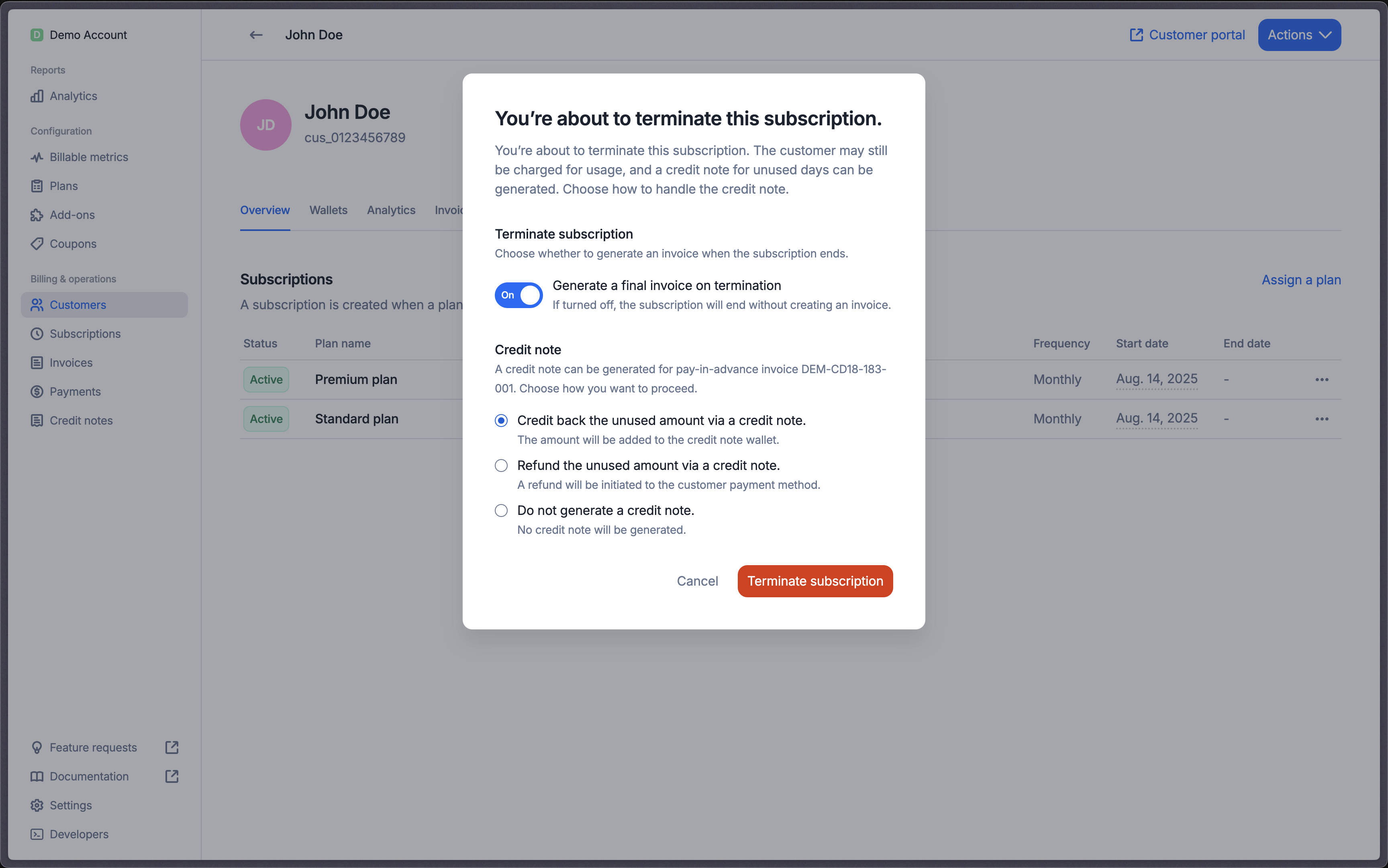
In the Termination dialog, the Credit note section asks how to handle the unused amount:
Offset invoice (offset) – The unused due amount is offset against the invoice, reducing the remaining amount due. The dialog shows this option only when the invoice still has an amount that can be offset.
Credit to wallet (credit) – The unused amount is credited back to the customer.
Refund the unused amount via a credit note (refund) – If the invoice is paid or partially paid, the unused paid amount is refunded; any unpaid unused amount is credited back to the customer. The dialog shows this option only when the invoice has a refundable amount.
Don’t create a credit note (skip) – No credit note is generated.
The dialog preselects the first option it shows: Offset invoice when the invoice can be offset, and Credit to wallet otherwise.
Include the ?status=pending filter. Without it, the endpoint targets the active subscription for that external_id and the pending one is not terminated.
A subscription held incomplete by a payment activation rule (waiting for its first payment) can be canceled on demand, instead of waiting for the rule’s timeout. This is useful when the payment clearly won’t complete, for example when the customer abandons a 3D Secure challenge and you want to let them start over.
Dashboard
API
To cancel an incomplete subscription through the user interface:
Access the “Customers” section via the side menu;
Select a customer from the list;
In the “Overview” tab, select the incomplete subscription; and
The subscription becomes canceled with cancellation_reason: manual. Its draft invoice is closed (nothing is billed), and any applied coupons, credit notes and wallet credits are recredited. Any pending payment is canceled with the payment provider on a best-effort basis: some payment statuses can’t be canceled, so a payment may still succeed later as a late payment. Termination options (on_termination_credit_note, on_termination_invoice) are ignored, since an incomplete subscription has never been billed.
Include the ?status=incomplete filter. Without it the endpoint targets the active subscription for that external_id and returns a not-found error for an incomplete one.
{"docsConfig":{"theme":"mint","$schema":"https://mintlify.com/docs.json","name":"Lago","description":"Developer documentation for Lago, the open-source billing platform for usage metering, subscriptions, invoicing, payments, and revenue operations.","colors":{"primary":"#006CFA","light":"#006CFA","dark":"#006CFA"},"logo":{"light":"https://mintcdn.com/lago-docs/zZSJbpe68PHhSs3x/logo/light.svg?fit=max\u0026auto=format\u0026n=zZSJbpe68PHhSs3x\u0026q=85\u0026s=b4af3001527c985b81858b9a0928534c","dark":"https://mintcdn.com/lago-docs/zZSJbpe68PHhSs3x/logo/dark.svg?fit=max\u0026auto=format\u0026n=zZSJbpe68PHhSs3x\u0026q=85\u0026s=1eb7aacac796b0cc6bf05be790a792b1"},"favicon":"https://mintcdn.com/lago-docs/8N-yOElNGe9jRGG5/favicon.svg?fit=max\u0026auto=format\u0026n=8N-yOElNGe9jRGG5\u0026q=85\u0026s=5c319e58dd9b5c5b8a31cf2ad8009a1c","api":{"openapi":"https://swagger.getlago.com/openapi.yaml","mdx":{"server":"https://api.getlago.com/api/v1"}},"background":{"color":{"light":"#F5F5EF","dark":"#131923"}},"navbar":{"links":[{"href":"https://getlago.com/book-a-demo","label":"Book a Demo"}],"primary":{"type":"button","label":"Get Started","href":"https://getlago.com/book-a-demo"}},"footer":{"socials":{"github":"https://github.com/getlago/lago","slack":"https://getlago.com/slack","x":"https://x.com/getlago","linkedin":"https://www.linkedin.com/company/getlago","youtube":"https://www.youtube.com/channel/UCp6ltp7n3SgDVsmerJ7O7ZA"},"links":[{"header":"Documentation","items":[{"label":"Get started","href":"https://getlago.com/docs/guide/introduction/welcome-to-lago"},{"label":"API reference","href":"https://getlago.com/docs/api-reference/intro"},{"label":"Integrations","href":"https://getlago.com/docs/integrations/introduction"},{"label":"Templates","href":"https://getlago.com/docs/templates/introduction"},{"label":"Changelog","href":"https://getlago.com/docs/changelog/product"},{"label":"FAQ","href":"https://getlago.com/docs/faq/about-lago"}]},{"header":"Developers","items":[{"label":"Developer hub","href":"https://getlago.com/docs/developers"},{"label":"Authentication","href":"https://getlago.com/docs/auth"},{"label":"Webhooks","href":"https://getlago.com/docs/guide/webhooks"},{"label":"SDKs","href":"https://getlago.com/docs/developers"},{"label":"OpenAPI spec","href":"https://swagger.getlago.com/"},{"label":"MCP server","href":"https://getlago.com/docs/guide/ai-agents/mcp-server"},{"label":"Self-hosted","href":"https://getlago.com/docs/guide/lago-self-hosted/overview"},{"label":"llms.txt","href":"https://getlago.com/docs/llms.txt"}]},{"header":"Platform","items":[{"label":"Usage metering","href":"https://getlago.com/platform/usage-metering"},{"label":"Billing \u0026 invoicing","href":"https://getlago.com/platform/billing-invoicing"},{"label":"Cash collection","href":"https://getlago.com/platform/cash-collection"},{"label":"Revenue analytics","href":"https://getlago.com/platform/revenue-analytics"},{"label":"Entitlements","href":"https://getlago.com/platform/entitlements"},{"label":"Lago AI","href":"https://getlago.com/platform/ai"},{"label":"Pricing","href":"https://getlago.com/pricing"}]},{"header":"Company","items":[{"label":"About Lago","href":"https://getlago.com/docs/about"},{"label":"Customers","href":"https://getlago.com/customers"},{"label":"Blog","href":"https://getlago.com/blog"},{"label":"Contact","href":"https://getlago.com/docs/contact"},{"label":"Trust center","href":"https://security.getlago.com"},{"label":"Status","href":"https://status.getlago.com"}]}]},"seo":{"metatags":{"canonical":"https://getlago.com/docs","description":"Developer documentation for Lago's API-first billing platform, including OpenAPI, SDKs, webhooks, MCP, authentication, and implementation guides.","keywords":"Lago API, billing API, usage metering API, OpenAPI, billing SDK, Lago MCP"},"organization":{"id":"https://getlago.com/#organization","name":"Lago","legalName":"Get Lago Corp.","url":"https://getlago.com","logo":"https://getlago.com/docs/logo/light.svg","sameAs":["https://github.com/getlago","https://www.linkedin.com/company/getlago","https://x.com/GetLago","https://www.youtube.com/channel/UCp6ltp7n3SgDVsmerJ7O7ZA"]},"indexing":"all"},"fonts":{"heading":{"family":"GT America","weight":700,"source":"fonts/GT-America-Standard-Medium.woff2","format":"woff2"},"body":{"family":"GT America","source":"fonts/GT-America-Standard-Regular.woff2","format":"woff2"}},"styling":{"codeblocks":"dark","latex":true},"integrations":{"ga4":{"measurementId":"G-743BQ9THCG"},"cookies":{"key":"lago_docs_analytics","value":"granted"}},"errors":{"404":{"redirect":false,"title":"Documentation page not found","description":"No Lago documentation exists at this URL. Start at [Lago Developer Documentation](/welcome), browse [Developer Resources](/developers), inspect the [documentation index](/llms.txt) or [sitemap](/sitemap.xml), or search the [API reference](/api-reference/intro)."}},"contextual":{"options":["copy","view","chatgpt","claude"],"display":"header"},"navigation":{"global":{"anchors":[{"anchor":"Blog","icon":"newspaper","href":"https://getlago.com/blog"},{"anchor":"Community","icon":"slack","href":"https://getlago.com/slack"},{"anchor":"GitHub","icon":"github","href":"https://github.com/getlago/lago"},{"anchor":"Status","icon":"signal-bars","href":"https://status.getlago.com/"}]},"pages":[]}},"deployment":{"deploymentMetadataValue":{"subdomain":"lago-docs","hasAudioNarration":false,"actualSubdomain":"lago-docs","customDomains":["getlago.com"],"gitSource":{"type":"github","owner":"getlago","repo":"lago-doc","deployBranch":"main","contentDirectory":"","isPrivate":false,"mountPath":"","label":""},"feedback":{"thumbs":true,"edits":true,"issues":true},"entitlements":{"AI_CHAT":{"status":"ENABLED"},"WEB_MCP":{"status":"ENABLED"},"NARRATION":{"status":"ENABLED"}},"buildId":"6aec9eb322f813687c155820","clientVersion":"0.0.4087","searchFilterCounts":[{"language":"default","tag":"API References","count":235},{"language":"default","tag":"API Reference","count":235},{"language":"default","tag":"Guide","count":201},{"language":"default","tag":"Integrations","count":54},{"language":"default","tag":"Plans","count":46},{"language":"default","tag":"Resources","count":46},{"language":"default","tag":"Charges","count":39},{"language":"default","tag":"Pricing \u0026 Subscriptions","count":35},{"language":"default","tag":"Subscriptions","count":31},{"language":"default","tag":"Invoices","count":27}]},"assistantConfig":{},"basePath":"/docs","hasChatPermissions":true,"hasWebMcpPermissions":true,"toggles":[{"name":"kill-isr","enabled":true,"variant":{"name":"disabled","enabled":false,"feature_enabled":true},"impressionData":false},{"name":"agent-mintlify-slack","enabled":true,"variant":{"name":"disabled","enabled":false,"feature_enabled":true},"impressionData":false},{"name":"agent-integrations-settings","enabled":true,"variant":{"name":"disabled","enabled":false,"feature_enabled":true},"impressionData":false},{"name":"rbac-expansion","enabled":true,"variant":{"name":"disabled","enabled":false,"feature_enabled":true},"impressionData":false},{"name":"automations-pr-grouping","enabled":true,"variant":{"name":"disabled","enabled":false,"feature_enabled":true},"impressionData":false},{"name":"custom-prefix","enabled":true,"variant":{"name":"disabled","enabled":false,"feature_enabled":true},"impressionData":false},{"name":"analytics-v7","enabled":true,"variant":{"name":"disabled","enabled":false,"feature_enabled":true},"impressionData":false},{"name":"user-flows-analytics","enabled":true,"variant":{"name":"disabled","enabled":false,"feature_enabled":true},"impressionData":false},{"name":"no-publish-flow","enabled":true,"variant":{"name":"disabled","enabled":false,"feature_enabled":true},"impressionData":false},{"name":"workos-onboarding","enabled":true,"variant":{"name":"disabled","enabled":false,"feature_enabled":true},"impressionData":false},{"name":"llms-txt-v2","enabled":true,"variant":{"name":"disabled","enabled":false,"feature_enabled":true},"impressionData":false},{"name":"snapshot-serving-live","enabled":true,"variant":{"name":"disabled","enabled":false,"feature_enabled":true},"impressionData":false},{"name":"stripTemperatureMiddleware","enabled":true,"variant":{"name":"disabled","enabled":false,"feature_enabled":true},"impressionData":false},{"name":"support-platform-pylon-zendesk","enabled":true,"variant":{"name":"disabled","enabled":false,"feature_enabled":true},"impressionData":false},{"name":"snapshot-serving","enabled":true,"variant":{"name":"disabled","enabled":false,"feature_enabled":true},"impressionData":false},{"name":"instant-rollback","enabled":true,"variant":{"name":"disabled","enabled":false,"feature_enabled":true},"impressionData":false},{"name":"granular-notifications-server","enabled":true,"variant":{"name":"disabled","enabled":false,"feature_enabled":true},"impressionData":false},{"name":"granular-notifications","enabled":true,"variant":{"name":"disabled","enabled":false,"feature_enabled":true},"impressionData":false},{"name":"automations-fable","enabled":true,"variant":{"name":"disabled","enabled":false,"feature_enabled":true},"impressionData":false},{"name":"fixed-ai-action-pricing","enabled":true,"variant":{"name":"disabled","enabled":false,"feature_enabled":true},"impressionData":false},{"name":"automation-resolve-merge-conflict","enabled":true,"variant":{"name":"disabled","enabled":false,"feature_enabled":true},"impressionData":false},{"name":"scoped-publishing","enabled":true,"variant":{"name":"disabled","enabled":false,"feature_enabled":true},"impressionData":false},{"name":"mintql","enabled":true,"variant":{"name":"disabled","enabled":false,"feature_enabled":true},"impressionData":false},{"name":"page-level-analytics","enabled":true,"variant":{"name":"disabled","enabled":false,"feature_enabled":true},"impressionData":false},{"name":"editor-version-history-v2","enabled":true,"variant":{"name":"disabled","enabled":false,"feature_enabled":true},"impressionData":false},{"name":"billing-page-v2","enabled":true,"variant":{"name":"disabled","enabled":false,"feature_enabled":true},"impressionData":false},{"name":"full-page-search","enabled":true,"variant":{"name":"disabled","enabled":false,"feature_enabled":true},"impressionData":false},{"name":"workspace-projects","enabled":true,"variant":{"name":"disabled","enabled":false,"feature_enabled":true},"impressionData":false},{"name":"assistant-v5","enabled":true,"variant":{"name":"disabled","enabled":false,"feature_enabled":true},"impressionData":false},{"name":"fork-pr-previews","enabled":true,"variant":{"name":"disabled","enabled":false,"feature_enabled":true},"impressionData":false},{"name":"revalidation-jwt","enabled":true,"variant":{"name":"disabled","enabled":false,"feature_enabled":true},"impressionData":false},{"name":"workos-sso-scim","enabled":true,"variant":{"name":"disabled","enabled":false,"feature_enabled":true},"impressionData":false},{"name":"hobby-abuse-scan","enabled":true,"variant":{"name":"disabled","enabled":false,"feature_enabled":true},"impressionData":false},{"name":"dashboard-inbox","enabled":true,"variant":{"name":"disabled","enabled":false,"feature_enabled":true},"impressionData":false},{"name":"workos-signup","enabled":true,"variant":{"name":"disabled","enabled":false,"feature_enabled":true},"impressionData":false},{"name":"turbopuffer-dual-write","enabled":true,"variant":{"name":"disabled","enabled":false,"feature_enabled":true},"impressionData":false},{"name":"workos-enabled","enabled":true,"variant":{"name":"disabled","enabled":false,"feature_enabled":true},"impressionData":false},{"name":"approve-review-flow","enabled":true,"variant":{"name":"disabled","enabled":false,"feature_enabled":true},"impressionData":false},{"name":"editor-metadata","enabled":true,"variant":{"name":"disabled","enabled":false,"feature_enabled":true},"impressionData":false},{"name":"sso-setup-deadline-banner","enabled":true,"variant":{"name":"disabled","enabled":false,"feature_enabled":true},"impressionData":false},{"name":"turbopuffer-serve","enabled":true,"variant":{"name":"disabled","enabled":false,"feature_enabled":true},"impressionData":false},{"name":"live-agents","enabled":true,"variant":{"name":"disabled","enabled":false,"feature_enabled":true},"impressionData":false},{"name":"comment-mode","enabled":true,"variant":{"name":"disabled","enabled":false,"feature_enabled":true},"impressionData":false}],"googleFontsInlined":false},"customCss":[{"filePath":"style.css","content":"html{visibility:hidden;background-color:#F5F5EF}@media (prefers-color-scheme: dark){html{background-color:#131923}}html.ready{visibility:visible}.dark .welcome-card{background-color:#1c2535!important;border-color:rgba(255, 255, 255, 0.1)!important;box-shadow:0 1px 2px 0 rgba(0, 0, 0, 0.3)!important;color:#e5e7eb}.dark .welcome-card:hover{background-color:#243044!important}.dark .welcome-card h3{color:#ffffff}.dark .welcome-card p{color:#9ca3af!important}#changelog-month-nav{padding-left:2.5rem;width:19rem;box-sizing:border-box;margin-bottom:1.75rem;max-height:45vh;overflow-y:auto}#changelog-month-nav .changelog-month-nav__year{margin:0 0 0.5rem;font-size:0.875rem;line-height:1.5rem;font-weight:500;color:#364152}#changelog-month-nav .changelog-month-nav__list{list-style:none;margin:0;padding:0;border-left:1px solid rgba(0, 0, 0, 0.08)}#changelog-month-nav .changelog-month-nav__list a{display:block;padding:0.25rem 0 0.25rem 0.75rem;margin-left:-1px;border-left:1px solid transparent;font-size:0.875rem;line-height:1.5rem;color:#697586;text-decoration:none;transition:color 0.15s ease, border-color 0.15s ease}#changelog-month-nav .changelog-month-nav__list a:hover{color:#121926}#changelog-month-nav .changelog-month-nav__list a.is-active{color:#006CFA;border-left-color:#006CFA;font-weight:500}.dark #changelog-month-nav .changelog-month-nav__year{color:#cdd5df}.dark #changelog-month-nav .changelog-month-nav__list{border-left-color:rgba(255, 255, 255, 0.12)}.dark #changelog-month-nav .changelog-month-nav__list a{color:#9aa4b2}.dark #changelog-month-nav .changelog-month-nav__list a:hover{color:#ffffff}.dark #changelog-month-nav .changelog-month-nav__list a.is-active{color:#4d9bff;border-left-color:#4d9bff}.update-container>div:first-child{display:none}.update-container>div:nth-child(2){flex:1 1 100%;max-width:100%;width:100%}.update-container{gap:0}#footer a[href*=\"utm_campaign=poweredBy\"]{display:none}"}],"page":{"pagePath":"guide/subscriptions/terminate-subscription","slug":"/guide/subscriptions/terminate-subscription","pageMetadata":{"title":"Terminate a subscription","description":"You can terminate a subscription at any time, whether it's active or pending.","href":"/guide/subscriptions/terminate-subscription"},"description":{"compiledSource":"\"use strict\";\nconst {jsx: _jsx} = arguments[0];\nconst {useMDXComponents: _provideComponents} = arguments[0];\nfunction _createMdxContent(props) {\n const _components = {\n p: \"p\",\n ..._provideComponents(),\n ...props.components\n };\n return _jsx(_components.p, {\n children: \"You can terminate a subscription at any time, whether it’s active or pending.\"\n });\n}\nfunction MDXContent(props = {}) {\n const {wrapper: MDXLayout} = {\n ..._provideComponents(),\n ...props.components\n };\n return MDXLayout ? _jsx(MDXLayout, {\n ...props,\n children: _jsx(_createMdxContent, {\n ...props\n })\n }) : _createMdxContent(props);\n}\nreturn {\n default: MDXContent\n};\n","frontmatter":{},"scope":{}},"pageType":"default","mdx":{"mdxSource":{"compiledSource":"\"use strict\";const{Fragment:_Fragment,jsx:_jsx,jsxs:_jsxs}=arguments[0];const{useMDXComponents:_provideComponents}=arguments[0];function _createMdxContent(props){const _components={a:`a`,code:`code`,li:`li`,ol:`ol`,p:`p`,pre:`pre`,span:`span`,strong:`strong`,ul:`ul`,..._provideComponents(),...props.components},{CodeBlock,CodeGroup,Frame,Heading,Info,OptimizedImage,Tab,Tabs,Warning}=_components;if(!CodeBlock)_missingMdxReference(`CodeBlock`,true);if(!CodeGroup)_missingMdxReference(`CodeGroup`,true);if(!Frame)_missingMdxReference(`Frame`,true);if(!Heading)_missingMdxReference(`Heading`,true);if(!Info)_missingMdxReference(`Info`,true);if(!OptimizedImage)_missingMdxReference(`OptimizedImage`,true);if(!Tab)_missingMdxReference(`Tab`,true);if(!Tabs)_missingMdxReference(`Tabs`,true);if(!Warning)_missingMdxReference(`Warning`,true);return _jsxs(_Fragment,{children:[_jsx(Heading,{level:`2`,id:`terminate-an-active-subscription`,children:`Terminate an active subscription`}),`\n`,_jsx(Info,{children:_jsxs(_components.p,{children:[`Subscriptions in the `,_jsx(_components.code,{children:`incomplete`}),` state are held by an `,_jsx(_components.a,{href:`/guide/subscriptions/activation-rules`,children:`activation rule`}),`. They cancel on their own if the rule fails or its timeout is reached, and you can also `,_jsx(_components.a,{href:`#cancel-an-incomplete-subscription`,children:`cancel them on demand`}),`.`]})}),`\n`,_jsxs(Tabs,{children:[_jsxs(Tab,{title:`Dashboard`,id:`dashboard`,children:[_jsx(_components.p,{children:`To terminate an active subscription through the user interface:`}),_jsxs(_components.ol,{children:[`\n`,_jsxs(_components.li,{children:[`Access the `,_jsx(_components.strong,{children:`“Customers”`}),` section via the side menu;`]}),`\n`,_jsx(_components.li,{children:`Select a customer from the list;`}),`\n`,_jsxs(_components.li,{children:[`In the `,_jsx(_components.strong,{children:`“Overview”`}),` tab, select an active subscription; and`]}),`\n`,_jsxs(_components.li,{children:[`Click `,_jsx(_components.strong,{children:`“Terminate subscription”`}),`.`]}),`\n`]})]}),_jsx(Tab,{title:`API`,id:`api`,children:_jsx(CodeGroup,{children:_jsx(CodeBlock,{filename:`Terminate an active subscription`,numberOfLines:`7`,language:`shellscript`,children:_jsx(_components.pre,{className:`shiki shiki-themes dark-plus dark-plus`,style:{backgroundColor:`#0B0C0E`,\"--shiki-dark-bg\":`#0B0C0E`,color:`#D4D4D4`,\"--shiki-dark\":`#D4D4D4`},language:`shellscript`,children:_jsxs(_components.code,{language:`shellscript`,numberOfLines:`7`,children:[_jsxs(_components.span,{className:`line`,children:[_jsx(_components.span,{style:{color:`#9CDCFE`,\"--shiki-dark\":`#9CDCFE`},children:` LAGO_URL`}),_jsx(_components.span,{style:{color:`#D4D4D4`,\"--shiki-dark\":`#D4D4D4`},children:`=`}),_jsx(_components.span,{style:{color:`#CE9178`,\"--shiki-dark\":`#CE9178`},children:`\"https://api.getlago.com\"`})]}),`\n`,_jsxs(_components.span,{className:`line`,children:[_jsx(_components.span,{style:{color:`#9CDCFE`,\"--shiki-dark\":`#9CDCFE`},children:` API_KEY`}),_jsx(_components.span,{style:{color:`#D4D4D4`,\"--shiki-dark\":`#D4D4D4`},children:`=`}),_jsx(_components.span,{style:{color:`#CE9178`,\"--shiki-dark\":`#CE9178`},children:`\"__YOUR_API_KEY__\"`})]}),`\n`,_jsxs(_components.span,{className:`line`,children:[_jsx(_components.span,{style:{color:`#9CDCFE`,\"--shiki-dark\":`#9CDCFE`},children:` EXTERNAL_ID`}),_jsx(_components.span,{style:{color:`#D4D4D4`,\"--shiki-dark\":`#D4D4D4`},children:`=`}),_jsx(_components.span,{style:{color:`#CE9178`,\"--shiki-dark\":`#CE9178`},children:`\"__YOUR_SUBSCRIPTION_ID__\"`})]}),`\n`,_jsx(_components.span,{className:`line`}),`\n`,_jsxs(_components.span,{className:`line`,children:[_jsx(_components.span,{style:{color:`#DCDCAA`,\"--shiki-dark\":`#DCDCAA`},children:` curl`}),_jsx(_components.span,{style:{color:`#569CD6`,\"--shiki-dark\":`#569CD6`},children:` --location`}),_jsx(_components.span,{style:{color:`#569CD6`,\"--shiki-dark\":`#569CD6`},children:` --request`}),_jsx(_components.span,{style:{color:`#CE9178`,\"--shiki-dark\":`#CE9178`},children:` DELETE`}),_jsx(_components.span,{style:{color:`#CE9178`,\"--shiki-dark\":`#CE9178`},children:` \"`}),_jsx(_components.span,{style:{color:`#9CDCFE`,\"--shiki-dark\":`#9CDCFE`},children:`$LAGO_URL`}),_jsx(_components.span,{style:{color:`#CE9178`,\"--shiki-dark\":`#CE9178`},children:`/api/v1/subscriptions/`}),_jsx(_components.span,{style:{color:`#9CDCFE`,\"--shiki-dark\":`#9CDCFE`},children:`$EXTERNAL_ID`}),_jsx(_components.span,{style:{color:`#CE9178`,\"--shiki-dark\":`#CE9178`},children:`\"`}),_jsx(_components.span,{style:{color:`#D7BA7D`,\"--shiki-dark\":`#D7BA7D`},children:` \\\\`})]}),`\n`,_jsxs(_components.span,{className:`line`,children:[_jsx(_components.span,{style:{color:`#569CD6`,\"--shiki-dark\":`#569CD6`},children:` --header`}),_jsx(_components.span,{style:{color:`#CE9178`,\"--shiki-dark\":`#CE9178`},children:` \"Authorization: Bearer `}),_jsx(_components.span,{style:{color:`#9CDCFE`,\"--shiki-dark\":`#9CDCFE`},children:`$API_KEY`}),_jsx(_components.span,{style:{color:`#CE9178`,\"--shiki-dark\":`#CE9178`},children:`\"`})]}),`\n`,_jsx(_components.span,{className:`line`}),`\n`]})})})})})]}),`\n`,_jsx(Heading,{level:`3`,id:`generate-a-closing-invoice-at-subscription-termination`,children:`Generate a closing invoice at subscription termination`}),`\n`,_jsxs(_components.p,{children:[`By default, Lago automatically generates a closing invoice for any `,_jsx(_components.strong,{children:`outstanding usage-based charges`}),` or `,_jsx(_components.strong,{children:`pay-in-arrears subscription fees`}),` that haven’t yet been invoiced.\nIf you don’t want to generate an invoice at termination:`]}),`\n`,_jsxs(Tabs,{children:[_jsx(Tab,{title:`Dashboard`,id:`dashboard-2`,children:_jsxs(_components.p,{children:[`In the Termination dialog, switch off the `,_jsx(_components.strong,{children:`Generate a final invoice on termination`}),` option.`]})}),_jsx(Tab,{title:`API`,id:`api-2`,children:_jsx(CodeGroup,{children:_jsx(CodeBlock,{filename:`Terminate a subscription without closing invoice`,numberOfLines:`6`,language:`shellscript`,children:_jsx(_components.pre,{className:`shiki shiki-themes dark-plus dark-plus`,style:{backgroundColor:`#0B0C0E`,\"--shiki-dark-bg\":`#0B0C0E`,color:`#D4D4D4`,\"--shiki-dark\":`#D4D4D4`},language:`shellscript`,children:_jsxs(_components.code,{language:`shellscript`,numberOfLines:`6`,children:[_jsxs(_components.span,{className:`line`,children:[_jsx(_components.span,{style:{color:`#9CDCFE`,\"--shiki-dark\":`#9CDCFE`},children:` LAGO_URL`}),_jsx(_components.span,{style:{color:`#D4D4D4`,\"--shiki-dark\":`#D4D4D4`},children:`=`}),_jsx(_components.span,{style:{color:`#CE9178`,\"--shiki-dark\":`#CE9178`},children:`\"https://api.getlago.com\"`})]}),`\n`,_jsxs(_components.span,{className:`line`,children:[_jsx(_components.span,{style:{color:`#9CDCFE`,\"--shiki-dark\":`#9CDCFE`},children:` API_KEY`}),_jsx(_components.span,{style:{color:`#D4D4D4`,\"--shiki-dark\":`#D4D4D4`},children:`=`}),_jsx(_components.span,{style:{color:`#CE9178`,\"--shiki-dark\":`#CE9178`},children:`\"__YOUR_API_KEY__\"`})]}),`\n`,_jsxs(_components.span,{className:`line`,children:[_jsx(_components.span,{style:{color:`#9CDCFE`,\"--shiki-dark\":`#9CDCFE`},children:` EXTERNAL_ID`}),_jsx(_components.span,{style:{color:`#D4D4D4`,\"--shiki-dark\":`#D4D4D4`},children:`=`}),_jsx(_components.span,{style:{color:`#CE9178`,\"--shiki-dark\":`#CE9178`},children:`\"__YOUR_SUBSCRIPTION_ID__\"`})]}),`\n`,_jsx(_components.span,{className:`line`}),`\n`,_jsxs(_components.span,{className:`line`,children:[_jsx(_components.span,{style:{color:`#DCDCAA`,\"--shiki-dark\":`#DCDCAA`},children:` curl`}),_jsx(_components.span,{style:{color:`#569CD6`,\"--shiki-dark\":`#569CD6`},children:` --location`}),_jsx(_components.span,{style:{color:`#569CD6`,\"--shiki-dark\":`#569CD6`},children:` --request`}),_jsx(_components.span,{style:{color:`#CE9178`,\"--shiki-dark\":`#CE9178`},children:` DELETE`}),_jsx(_components.span,{style:{color:`#CE9178`,\"--shiki-dark\":`#CE9178`},children:` \"`}),_jsx(_components.span,{style:{color:`#9CDCFE`,\"--shiki-dark\":`#9CDCFE`},children:`$LAGO_URL`}),_jsx(_components.span,{style:{color:`#CE9178`,\"--shiki-dark\":`#CE9178`},children:`/api/v1/subscriptions/`}),_jsx(_components.span,{style:{color:`#9CDCFE`,\"--shiki-dark\":`#9CDCFE`},children:`$EXTERNAL_ID`}),_jsx(_components.span,{style:{color:`#CE9178`,\"--shiki-dark\":`#CE9178`},children:`?on_termination_invoice=skip\"`}),_jsx(_components.span,{style:{color:`#D7BA7D`,\"--shiki-dark\":`#D7BA7D`},children:` \\\\`})]}),`\n`,_jsxs(_components.span,{className:`line`,children:[_jsx(_components.span,{style:{color:`#569CD6`,\"--shiki-dark\":`#569CD6`},children:` --header`}),_jsx(_components.span,{style:{color:`#CE9178`,\"--shiki-dark\":`#CE9178`},children:` \"Authorization: Bearer `}),_jsx(_components.span,{style:{color:`#9CDCFE`,\"--shiki-dark\":`#9CDCFE`},children:`$API_KEY`}),_jsx(_components.span,{style:{color:`#CE9178`,\"--shiki-dark\":`#CE9178`},children:`\"`})]}),`\n`]})})})})})]}),`\n`,_jsx(Heading,{level:`3`,id:`generate-a-closing-credit-note-at-subscription-termination`,children:`Generate a closing credit note at subscription termination`}),`\n`,_jsxs(_components.p,{children:[`If the subscription fee has been `,_jsx(_components.strong,{children:`paid in advance`}),`, Lago automatically issues a credit note for the `,_jsx(_components.strong,{children:`unused days`}),`.\nAt termination, you can:`]}),`\n`,_jsxs(Tabs,{children:[_jsxs(Tab,{title:`Dashboard`,id:`dashboard-3`,children:[_jsxs(_components.p,{children:[`In the Termination dialog, the `,_jsx(_components.strong,{children:`Credit note`}),` section asks how to handle the unused amount:`]}),_jsxs(_components.ul,{children:[`\n`,_jsxs(_components.li,{children:[_jsx(_components.strong,{children:`Offset invoice`}),` (`,_jsx(_components.code,{children:`offset`}),`) – The unused due amount is offset against the invoice, reducing the remaining amount due. The dialog shows this option only when the invoice still has an amount that can be offset.`]}),`\n`,_jsxs(_components.li,{children:[_jsx(_components.strong,{children:`Credit to wallet`}),` (`,_jsx(_components.code,{children:`credit`}),`) – The unused amount is credited back to the customer.`]}),`\n`,_jsxs(_components.li,{children:[_jsx(_components.strong,{children:`Refund the unused amount via a credit note`}),` (`,_jsx(_components.code,{children:`refund`}),`) – If the invoice is paid or partially paid, the unused paid amount is refunded; any unpaid unused amount is credited back to the customer. The dialog shows this option only when the invoice has a refundable amount.`]}),`\n`,_jsxs(_components.li,{children:[_jsx(_components.strong,{children:`Don’t create a credit note`}),` (`,_jsx(_components.code,{children:`skip`}),`) – No credit note is generated.`]}),`\n`]}),_jsxs(_components.p,{children:[`The dialog preselects the first option it shows: `,_jsx(_components.strong,{children:`Offset invoice`}),` when the invoice can be offset, and `,_jsx(_components.strong,{children:`Credit to wallet`}),` otherwise.`]}),_jsx(Frame,{caption:`Termination options`,children:_jsx(OptimizedImage,{src:`https://mintcdn.com/lago-docs/ugh-mbZn6BFsC-Za/guide/subscriptions/images/terminate-subscription-options.png?fit=max\u0026auto=format\u0026n=ugh-mbZn6BFsC-Za\u0026q=85\u0026s=82cab54066906288f43fb1c967d12ae4`,alt:`Termination dialog with the options for handling the unused amount.`,\"data-og-width\":`3456`,width:`3456`,\"data-og-height\":`2161`,height:`2161`,\"data-path\":`guide/subscriptions/images/terminate-subscription-options.png`,\"data-optimize\":`true`,\"data-opv\":`3`,srcset:`https://mintcdn.com/lago-docs/ugh-mbZn6BFsC-Za/guide/subscriptions/images/terminate-subscription-options.png?w=280\u0026fit=max\u0026auto=format\u0026n=ugh-mbZn6BFsC-Za\u0026q=85\u0026s=0c0f96094f1e0ee775898b6ba4a475a6 280w, https://mintcdn.com/lago-docs/ugh-mbZn6BFsC-Za/guide/subscriptions/images/terminate-subscription-options.png?w=560\u0026fit=max\u0026auto=format\u0026n=ugh-mbZn6BFsC-Za\u0026q=85\u0026s=a966b3418525f8c580c216446af60d07 560w, https://mintcdn.com/lago-docs/ugh-mbZn6BFsC-Za/guide/subscriptions/images/terminate-subscription-options.png?w=840\u0026fit=max\u0026auto=format\u0026n=ugh-mbZn6BFsC-Za\u0026q=85\u0026s=ac64e9d9cf781b7fd8e2331ca9d465e1 840w, https://mintcdn.com/lago-docs/ugh-mbZn6BFsC-Za/guide/subscriptions/images/terminate-subscription-options.png?w=1100\u0026fit=max\u0026auto=format\u0026n=ugh-mbZn6BFsC-Za\u0026q=85\u0026s=405a6df075af6fcdf92b40093fc856f2 1100w, https://mintcdn.com/lago-docs/ugh-mbZn6BFsC-Za/guide/subscriptions/images/terminate-subscription-options.png?w=1650\u0026fit=max\u0026auto=format\u0026n=ugh-mbZn6BFsC-Za\u0026q=85\u0026s=7af1d301742b5b5fe8471eacfc682094 1650w, https://mintcdn.com/lago-docs/ugh-mbZn6BFsC-Za/guide/subscriptions/images/terminate-subscription-options.png?w=2500\u0026fit=max\u0026auto=format\u0026n=ugh-mbZn6BFsC-Za\u0026q=85\u0026s=883d81f577cb09d18dd5f6f1fd330f86 2500w`})})]}),_jsxs(Tab,{title:`API`,id:`api-3`,children:[_jsx(CodeGroup,{children:_jsx(CodeBlock,{filename:`Terminate a subscription without closing credit note`,numberOfLines:`6`,language:`shellscript`,children:_jsx(_components.pre,{className:`shiki shiki-themes dark-plus dark-plus`,style:{backgroundColor:`#0B0C0E`,\"--shiki-dark-bg\":`#0B0C0E`,color:`#D4D4D4`,\"--shiki-dark\":`#D4D4D4`},language:`shellscript`,children:_jsxs(_components.code,{language:`shellscript`,numberOfLines:`6`,children:[_jsxs(_components.span,{className:`line`,children:[_jsx(_components.span,{style:{color:`#9CDCFE`,\"--shiki-dark\":`#9CDCFE`},children:` LAGO_URL`}),_jsx(_components.span,{style:{color:`#D4D4D4`,\"--shiki-dark\":`#D4D4D4`},children:`=`}),_jsx(_components.span,{style:{color:`#CE9178`,\"--shiki-dark\":`#CE9178`},children:`\"https://api.getlago.com\"`})]}),`\n`,_jsxs(_components.span,{className:`line`,children:[_jsx(_components.span,{style:{color:`#9CDCFE`,\"--shiki-dark\":`#9CDCFE`},children:` API_KEY`}),_jsx(_components.span,{style:{color:`#D4D4D4`,\"--shiki-dark\":`#D4D4D4`},children:`=`}),_jsx(_components.span,{style:{color:`#CE9178`,\"--shiki-dark\":`#CE9178`},children:`\"__YOUR_API_KEY__\"`})]}),`\n`,_jsxs(_components.span,{className:`line`,children:[_jsx(_components.span,{style:{color:`#9CDCFE`,\"--shiki-dark\":`#9CDCFE`},children:` EXTERNAL_ID`}),_jsx(_components.span,{style:{color:`#D4D4D4`,\"--shiki-dark\":`#D4D4D4`},children:`=`}),_jsx(_components.span,{style:{color:`#CE9178`,\"--shiki-dark\":`#CE9178`},children:`\"__YOUR_SUBSCRIPTION_ID__\"`})]}),`\n`,_jsx(_components.span,{className:`line`}),`\n`,_jsxs(_components.span,{className:`line`,children:[_jsx(_components.span,{style:{color:`#DCDCAA`,\"--shiki-dark\":`#DCDCAA`},children:` curl`}),_jsx(_components.span,{style:{color:`#569CD6`,\"--shiki-dark\":`#569CD6`},children:` --location`}),_jsx(_components.span,{style:{color:`#569CD6`,\"--shiki-dark\":`#569CD6`},children:` --request`}),_jsx(_components.span,{style:{color:`#CE9178`,\"--shiki-dark\":`#CE9178`},children:` DELETE`}),_jsx(_components.span,{style:{color:`#CE9178`,\"--shiki-dark\":`#CE9178`},children:` \"`}),_jsx(_components.span,{style:{color:`#9CDCFE`,\"--shiki-dark\":`#9CDCFE`},children:`$LAGO_URL`}),_jsx(_components.span,{style:{color:`#CE9178`,\"--shiki-dark\":`#CE9178`},children:`/api/v1/subscriptions/`}),_jsx(_components.span,{style:{color:`#9CDCFE`,\"--shiki-dark\":`#9CDCFE`},children:`$EXTERNAL_ID`}),_jsx(_components.span,{style:{color:`#CE9178`,\"--shiki-dark\":`#CE9178`},children:`?on_termination_credit_note=skip\"`}),_jsx(_components.span,{style:{color:`#D7BA7D`,\"--shiki-dark\":`#D7BA7D`},children:` \\\\`})]}),`\n`,_jsxs(_components.span,{className:`line`,children:[_jsx(_components.span,{style:{color:`#569CD6`,\"--shiki-dark\":`#569CD6`},children:` --header`}),_jsx(_components.span,{style:{color:`#CE9178`,\"--shiki-dark\":`#CE9178`},children:` \"Authorization: Bearer `}),_jsx(_components.span,{style:{color:`#9CDCFE`,\"--shiki-dark\":`#9CDCFE`},children:`$API_KEY`}),_jsx(_components.span,{style:{color:`#CE9178`,\"--shiki-dark\":`#CE9178`},children:`\"`})]}),`\n`]})})})}),_jsxs(_components.p,{children:[_jsx(_components.code,{children:`on_termination_credit_note`}),` accepts `,_jsx(_components.code,{children:`credit`}),`, `,_jsx(_components.code,{children:`offset`}),`, `,_jsx(_components.code,{children:`refund`}),` and `,_jsx(_components.code,{children:`skip`}),`. Lago uses `,_jsx(_components.code,{children:`credit`}),` when you leave it out.`]})]})]}),`\n`,_jsx(Heading,{level:`2`,id:`terminate-a-pending-subscription`,children:`Terminate a pending subscription`}),`\n`,_jsxs(Tabs,{children:[_jsxs(Tab,{title:`Dashboard`,id:`dashboard-4`,children:[_jsx(_components.p,{children:`To terminate a pending subscription through the user interface:`}),_jsxs(_components.ol,{children:[`\n`,_jsxs(_components.li,{children:[`Access the `,_jsx(_components.strong,{children:`“Customers”`}),` section via the side menu;`]}),`\n`,_jsx(_components.li,{children:`Select a customer from the list;`}),`\n`,_jsxs(_components.li,{children:[`In the `,_jsx(_components.strong,{children:`“Overview”`}),` tab, select a pending subscription (subscription set in the future or pending downgrade); and`]}),`\n`,_jsxs(_components.li,{children:[`Click `,_jsx(_components.strong,{children:`“Terminate subscription”`}),` to cancel a pending subscription.`]}),`\n`]})]}),_jsx(Tab,{title:`API`,id:`api-4`,children:_jsx(CodeGroup,{children:_jsx(CodeBlock,{filename:`Terminate a pending subscription`,numberOfLines:`6`,language:`shellscript`,children:_jsx(_components.pre,{className:`shiki shiki-themes dark-plus dark-plus`,style:{backgroundColor:`#0B0C0E`,\"--shiki-dark-bg\":`#0B0C0E`,color:`#D4D4D4`,\"--shiki-dark\":`#D4D4D4`},language:`shellscript`,children:_jsxs(_components.code,{language:`shellscript`,numberOfLines:`6`,children:[_jsxs(_components.span,{className:`line`,children:[_jsx(_components.span,{style:{color:`#9CDCFE`,\"--shiki-dark\":`#9CDCFE`},children:` LAGO_URL`}),_jsx(_components.span,{style:{color:`#D4D4D4`,\"--shiki-dark\":`#D4D4D4`},children:`=`}),_jsx(_components.span,{style:{color:`#CE9178`,\"--shiki-dark\":`#CE9178`},children:`\"https://api.getlago.com\"`})]}),`\n`,_jsxs(_components.span,{className:`line`,children:[_jsx(_components.span,{style:{color:`#9CDCFE`,\"--shiki-dark\":`#9CDCFE`},children:` API_KEY`}),_jsx(_components.span,{style:{color:`#D4D4D4`,\"--shiki-dark\":`#D4D4D4`},children:`=`}),_jsx(_components.span,{style:{color:`#CE9178`,\"--shiki-dark\":`#CE9178`},children:`\"__YOUR_API_KEY__\"`})]}),`\n`,_jsxs(_components.span,{className:`line`,children:[_jsx(_components.span,{style:{color:`#9CDCFE`,\"--shiki-dark\":`#9CDCFE`},children:` EXTERNAL_ID`}),_jsx(_components.span,{style:{color:`#D4D4D4`,\"--shiki-dark\":`#D4D4D4`},children:`=`}),_jsx(_components.span,{style:{color:`#CE9178`,\"--shiki-dark\":`#CE9178`},children:`\"__YOUR_SUBSCRIPTION_ID__\"`})]}),`\n`,_jsx(_components.span,{className:`line`}),`\n`,_jsxs(_components.span,{className:`line`,children:[_jsx(_components.span,{style:{color:`#DCDCAA`,\"--shiki-dark\":`#DCDCAA`},children:` curl`}),_jsx(_components.span,{style:{color:`#569CD6`,\"--shiki-dark\":`#569CD6`},children:` --location`}),_jsx(_components.span,{style:{color:`#569CD6`,\"--shiki-dark\":`#569CD6`},children:` --request`}),_jsx(_components.span,{style:{color:`#CE9178`,\"--shiki-dark\":`#CE9178`},children:` DELETE`}),_jsx(_components.span,{style:{color:`#CE9178`,\"--shiki-dark\":`#CE9178`},children:` \"`}),_jsx(_components.span,{style:{color:`#9CDCFE`,\"--shiki-dark\":`#9CDCFE`},children:`$LAGO_URL`}),_jsx(_components.span,{style:{color:`#CE9178`,\"--shiki-dark\":`#CE9178`},children:`/api/v1/subscriptions/`}),_jsx(_components.span,{style:{color:`#9CDCFE`,\"--shiki-dark\":`#9CDCFE`},children:`$EXTERNAL_ID`}),_jsx(_components.span,{style:{color:`#CE9178`,\"--shiki-dark\":`#CE9178`},children:`?status=pending\"`}),_jsx(_components.span,{style:{color:`#D7BA7D`,\"--shiki-dark\":`#D7BA7D`},children:` \\\\`})]}),`\n`,_jsxs(_components.span,{className:`line`,children:[_jsx(_components.span,{style:{color:`#569CD6`,\"--shiki-dark\":`#569CD6`},children:` --header`}),_jsx(_components.span,{style:{color:`#CE9178`,\"--shiki-dark\":`#CE9178`},children:` \"Authorization: Bearer `}),_jsx(_components.span,{style:{color:`#9CDCFE`,\"--shiki-dark\":`#9CDCFE`},children:`$API_KEY`}),_jsx(_components.span,{style:{color:`#CE9178`,\"--shiki-dark\":`#CE9178`},children:`\"`})]}),`\n`]})})})})})]}),`\n`,_jsx(Warning,{children:_jsxs(_components.p,{children:[`Include the `,_jsx(_components.code,{children:`?status=pending`}),` filter. Without it, the endpoint targets the `,_jsx(_components.code,{children:`active`}),` subscription for that `,_jsx(_components.code,{children:`external_id`}),` and the pending one is not terminated.`]})}),`\n`,_jsx(Heading,{level:`2`,id:`cancel-an-incomplete-subscription`,children:`Cancel an incomplete subscription`}),`\n`,_jsxs(_components.p,{children:[`A subscription held `,_jsx(_components.code,{children:`incomplete`}),` by a payment `,_jsx(_components.a,{href:`/guide/subscriptions/activation-rules`,children:`activation rule`}),` (waiting for its first payment) can be canceled on demand, instead of waiting for the rule’s timeout. This is useful when the payment clearly won’t complete, for example when the customer abandons a 3D Secure challenge and you want to let them start over.`]}),`\n`,_jsxs(Tabs,{children:[_jsxs(Tab,{title:`Dashboard`,id:`dashboard-5`,children:[_jsx(_components.p,{children:`To cancel an incomplete subscription through the user interface:`}),_jsxs(_components.ol,{children:[`\n`,_jsxs(_components.li,{children:[`Access the `,_jsx(_components.strong,{children:`“Customers”`}),` section via the side menu;`]}),`\n`,_jsx(_components.li,{children:`Select a customer from the list;`}),`\n`,_jsxs(_components.li,{children:[`In the `,_jsx(_components.strong,{children:`“Overview”`}),` tab, select the incomplete subscription; and`]}),`\n`,_jsxs(_components.li,{children:[`Click `,_jsx(_components.strong,{children:`“Cancel subscription”`}),`.`]}),`\n`]})]}),_jsx(Tab,{title:`API`,id:`api-5`,children:_jsx(CodeGroup,{children:_jsx(CodeBlock,{filename:`Cancel an incomplete subscription`,numberOfLines:`6`,language:`shellscript`,children:_jsx(_components.pre,{className:`shiki shiki-themes dark-plus dark-plus`,style:{backgroundColor:`#0B0C0E`,\"--shiki-dark-bg\":`#0B0C0E`,color:`#D4D4D4`,\"--shiki-dark\":`#D4D4D4`},language:`shellscript`,children:_jsxs(_components.code,{language:`shellscript`,numberOfLines:`6`,children:[_jsxs(_components.span,{className:`line`,children:[_jsx(_components.span,{style:{color:`#9CDCFE`,\"--shiki-dark\":`#9CDCFE`},children:` LAGO_URL`}),_jsx(_components.span,{style:{color:`#D4D4D4`,\"--shiki-dark\":`#D4D4D4`},children:`=`}),_jsx(_components.span,{style:{color:`#CE9178`,\"--shiki-dark\":`#CE9178`},children:`\"https://api.getlago.com\"`})]}),`\n`,_jsxs(_components.span,{className:`line`,children:[_jsx(_components.span,{style:{color:`#9CDCFE`,\"--shiki-dark\":`#9CDCFE`},children:` API_KEY`}),_jsx(_components.span,{style:{color:`#D4D4D4`,\"--shiki-dark\":`#D4D4D4`},children:`=`}),_jsx(_components.span,{style:{color:`#CE9178`,\"--shiki-dark\":`#CE9178`},children:`\"__YOUR_API_KEY__\"`})]}),`\n`,_jsxs(_components.span,{className:`line`,children:[_jsx(_components.span,{style:{color:`#9CDCFE`,\"--shiki-dark\":`#9CDCFE`},children:` EXTERNAL_ID`}),_jsx(_components.span,{style:{color:`#D4D4D4`,\"--shiki-dark\":`#D4D4D4`},children:`=`}),_jsx(_components.span,{style:{color:`#CE9178`,\"--shiki-dark\":`#CE9178`},children:`\"__YOUR_SUBSCRIPTION_ID__\"`})]}),`\n`,_jsx(_components.span,{className:`line`}),`\n`,_jsxs(_components.span,{className:`line`,children:[_jsx(_components.span,{style:{color:`#DCDCAA`,\"--shiki-dark\":`#DCDCAA`},children:` curl`}),_jsx(_components.span,{style:{color:`#569CD6`,\"--shiki-dark\":`#569CD6`},children:` --location`}),_jsx(_components.span,{style:{color:`#569CD6`,\"--shiki-dark\":`#569CD6`},children:` --request`}),_jsx(_components.span,{style:{color:`#CE9178`,\"--shiki-dark\":`#CE9178`},children:` DELETE`}),_jsx(_components.span,{style:{color:`#CE9178`,\"--shiki-dark\":`#CE9178`},children:` \"`}),_jsx(_components.span,{style:{color:`#9CDCFE`,\"--shiki-dark\":`#9CDCFE`},children:`$LAGO_URL`}),_jsx(_components.span,{style:{color:`#CE9178`,\"--shiki-dark\":`#CE9178`},children:`/api/v1/subscriptions/`}),_jsx(_components.span,{style:{color:`#9CDCFE`,\"--shiki-dark\":`#9CDCFE`},children:`$EXTERNAL_ID`}),_jsx(_components.span,{style:{color:`#CE9178`,\"--shiki-dark\":`#CE9178`},children:`?status=incomplete\"`}),_jsx(_components.span,{style:{color:`#D7BA7D`,\"--shiki-dark\":`#D7BA7D`},children:` \\\\`})]}),`\n`,_jsxs(_components.span,{className:`line`,children:[_jsx(_components.span,{style:{color:`#569CD6`,\"--shiki-dark\":`#569CD6`},children:` --header`}),_jsx(_components.span,{style:{color:`#CE9178`,\"--shiki-dark\":`#CE9178`},children:` \"Authorization: Bearer `}),_jsx(_components.span,{style:{color:`#9CDCFE`,\"--shiki-dark\":`#9CDCFE`},children:`$API_KEY`}),_jsx(_components.span,{style:{color:`#CE9178`,\"--shiki-dark\":`#CE9178`},children:`\"`})]}),`\n`]})})})})})]}),`\n`,_jsxs(_components.p,{children:[`The subscription becomes `,_jsx(_components.code,{children:`canceled`}),` with `,_jsx(_components.code,{children:`cancellation_reason: manual`}),`. Its draft invoice is closed (nothing is billed), and any applied coupons, credit notes and wallet credits are recredited. Any pending payment is canceled with the payment provider on a best-effort basis: some payment statuses can’t be canceled, so a payment may still succeed later as a late payment. Termination options (`,_jsx(_components.code,{children:`on_termination_credit_note`}),`, `,_jsx(_components.code,{children:`on_termination_invoice`}),`) are ignored, since an incomplete subscription has never been billed.`]}),`\n`,_jsx(Warning,{children:_jsxs(_components.p,{children:[`Include the `,_jsx(_components.code,{children:`?status=incomplete`}),` filter. Without it the endpoint targets the `,_jsx(_components.code,{children:`active`}),` subscription for that `,_jsx(_components.code,{children:`external_id`}),` and returns a not-found error for an incomplete one.`]})})]})}function MDXContent(props={}){const{wrapper:MDXLayout}={..._provideComponents(),...props.components};return MDXLayout?_jsx(MDXLayout,{...props,children:_jsx(_createMdxContent,{...props})}):_createMdxContent(props)}return{default:MDXContent};function _missingMdxReference(id,component){throw new Error(`Expected `+(component?`component`:`object`)+\" `\"+id+\"` to be defined: you likely forgot to import, pass, or provide it.\")}","frontmatter":{},"scope":{"codeStyling":"dark","config":{},"pageMetadata":{"title":"Terminate a subscription","description":"You can terminate a subscription at any time, whether it's active or pending.","href":"/guide/subscriptions/terminate-subscription"}}},"mdxSourceWithNoJs":null},"mdxExtracts":{"tableOfContents":[{"title":"Terminate an active subscription","slug":"terminate-an-active-subscription","depth":2,"children":[{"title":"Generate a closing invoice at subscription termination","slug":"generate-a-closing-invoice-at-subscription-termination","depth":3,"children":[]},{"title":"Generate a closing credit note at subscription termination","slug":"generate-a-closing-credit-note-at-subscription-termination","depth":3,"children":[]}]},{"title":"Terminate a pending subscription","slug":"terminate-a-pending-subscription","depth":2,"children":[]},{"title":"Cancel an incomplete subscription","slug":"cancel-an-incomplete-subscription","depth":2,"children":[]}],"codeExamples":{}},"jsLinks":["/docs/_mintlify/custom/lago-docs/a0e77058367d9146/canonical.js","/docs/_mintlify/custom/lago-docs/fa2446312177e9c6/loader.js","/docs/_mintlify/custom/lago-docs/c55d8403f7fc83ad/changelog-anchor-redirect.js","/docs/_mintlify/custom/lago-docs/8c326c8b67b47933/changelog-month-nav.js","/docs/_mintlify/custom/lago-docs/103c90943d27f62a/webmcp.js","/docs/_mintlify/custom/lago-docs/1219fb859e5c496e/github-outbound.js"],"subdomain":"lago-docs","siteName":"Lago","title":"Terminate a subscription - Lago","navMaps":{"firstHrefInVersion":{},"firstHrefInLanguage":{}},"lastModified":"2026-11-02T15:33:02.550Z","originalFileLocation":"guide/subscriptions/terminate-subscription.mdx"},"headHtml":"\u003cscript data-mint-head>(function(){var d=document.documentElement,p=null;if(!p){try{p=localStorage.getItem(\"isDarkMode\")}catch(e){}if(p==='true')p='dark';else if(p==='false')p='light';if(p!=='light'\u0026\u0026p!=='dark'\u0026\u0026p!=='system')p=\"system\"}var r=p==='system'?(matchMedia(\"(prefers-color-scheme: dark)\").matches?'dark':'light'):p;d.classList.remove(r==='dark'?'light':'dark');d.classList.add(r);d.setAttribute(\"data-theme-preference\",p)})();\u003c/script>\u003cmeta data-mint-head name=\"description\" content=\"You can terminate a subscription at any time, whether it\u0026#x27;s active or pending.\">\u003cmeta data-mint-head name=\"keywords\" content=\"Lago API, billing API, usage metering API, OpenAPI, billing SDK, Lago MCP\">\u003cmeta data-mint-head name=\"application-name\" content=\"Lago\">\u003cmeta data-mint-head name=\"generator\" content=\"Mintlify\">\u003clink data-mint-head rel=\"icon\" type=\"image/png\" sizes=\"192x192\" href=\"/docs/mintlify-assets/_mintlify/favicons/lago-docs/PXUAhcpsneOuo3Dn/_generated/favicon/android-chrome-192x192.png\" media=\"(prefers-color-scheme: light)\">\u003clink data-mint-head rel=\"apple-touch-icon\" type=\"image/png\" sizes=\"180x180\" href=\"/docs/mintlify-assets/_mintlify/favicons/lago-docs/PXUAhcpsneOuo3Dn/_generated/favicon/apple-touch-icon.png\">\u003clink data-mint-head rel=\"icon\" type=\"image/png\" sizes=\"16x16\" href=\"/docs/mintlify-assets/_mintlify/favicons/lago-docs/PXUAhcpsneOuo3Dn/_generated/favicon/favicon-16x16.png\" media=\"(prefers-color-scheme: light)\">\u003clink data-mint-head rel=\"icon\" type=\"image/png\" sizes=\"32x32\" href=\"/docs/mintlify-assets/_mintlify/favicons/lago-docs/PXUAhcpsneOuo3Dn/_generated/favicon/favicon-32x32.png\" media=\"(prefers-color-scheme: light)\">\u003clink data-mint-head rel=\"shortcut icon\" type=\"image/x-icon\" href=\"/docs/mintlify-assets/_mintlify/favicons/lago-docs/PXUAhcpsneOuo3Dn/_generated/favicon/favicon.ico\" media=\"(prefers-color-scheme: light)\">\u003clink data-mint-head rel=\"icon\" type=\"image/png\" sizes=\"192x192\" href=\"/docs/mintlify-assets/_mintlify/favicons/lago-docs/PXUAhcpsneOuo3Dn/_generated/favicon-dark/android-chrome-192x192.png\" media=\"(prefers-color-scheme: dark)\">\u003clink data-mint-head rel=\"icon\" type=\"image/png\" sizes=\"16x16\" href=\"/docs/mintlify-assets/_mintlify/favicons/lago-docs/PXUAhcpsneOuo3Dn/_generated/favicon-dark/favicon-16x16.png\" media=\"(prefers-color-scheme: dark)\">\u003clink data-mint-head rel=\"icon\" type=\"image/png\" sizes=\"32x32\" href=\"/docs/mintlify-assets/_mintlify/favicons/lago-docs/PXUAhcpsneOuo3Dn/_generated/favicon-dark/favicon-32x32.png\" media=\"(prefers-color-scheme: dark)\">\u003clink data-mint-head rel=\"shortcut icon\" type=\"image/x-icon\" href=\"/docs/mintlify-assets/_mintlify/favicons/lago-docs/PXUAhcpsneOuo3Dn/_generated/favicon-dark/favicon.ico\" media=\"(prefers-color-scheme: dark)\">\u003cmeta data-mint-head property=\"og:title\" content=\"Terminate a subscription - Lago\">\u003cmeta data-mint-head property=\"og:description\" content=\"You can terminate a subscription at any time, whether it\u0026#x27;s active or pending.\">\u003cmeta data-mint-head property=\"og:site_name\" content=\"Lago\">\u003cmeta data-mint-head property=\"og:url\" content=\"https://getlago.com/docs/guide/subscriptions/terminate-subscription\">\u003cmeta data-mint-head property=\"og:type\" content=\"website\">\u003cmeta data-mint-head property=\"og:image\" content=\"https://lago-docs.mintlify.site/docs/_mintlify/api/og/v2?division=Subscriptions\u0026amp;title=Terminate+a+subscription\u0026amp;description=You+can+terminate+a+subscription+at+any+time%2C+whether+it%27s+active+or+pending.\u0026amp;theme=eb987f771609ccd12d360d11\u0026amp;signature=632d543228c4290bcf1df2f3eb739da795c8b44f58fa5c32975a4de6cc8c0b83\">\u003cmeta data-mint-head property=\"og:image:width\" content=\"1200\">\u003cmeta data-mint-head property=\"og:image:height\" content=\"630\">\u003cmeta data-mint-head name=\"twitter:card\" content=\"summary_large_image\">\u003cmeta data-mint-head name=\"twitter:title\" content=\"Terminate a subscription - Lago\">\u003cmeta data-mint-head name=\"twitter:description\" content=\"You can terminate a subscription at any time, whether it\u0026#x27;s active or pending.\">\u003cmeta data-mint-head name=\"twitter:image\" content=\"https://lago-docs.mintlify.site/docs/_mintlify/api/og/v2?division=Subscriptions\u0026amp;title=Terminate+a+subscription\u0026amp;description=You+can+terminate+a+subscription+at+any+time%2C+whether+it%27s+active+or+pending.\u0026amp;theme=eb987f771609ccd12d360d11\u0026amp;signature=632d543228c4290bcf1df2f3eb739da795c8b44f58fa5c32975a4de6cc8c0b83\">\u003cmeta data-mint-head name=\"twitter:image:width\" content=\"1200\">\u003cmeta data-mint-head name=\"twitter:image:height\" content=\"630\">\u003cmeta data-mint-head name=\"msapplication-config\" content=\"/docs/mintlify-assets/_mintlify/favicons/lago-docs/PXUAhcpsneOuo3Dn/_generated/favicon/browserconfig.xml\">\u003cmeta data-mint-head name=\"apple-mobile-web-app-title\" content=\"Lago\">\u003cmeta data-mint-head name=\"msapplication-TileColor\" content=\"#006CFA\">\u003clink data-mint-head rel=\"canonical\" href=\"https://getlago.com/docs/guide/subscriptions/terminate-subscription\">\u003clink data-mint-head rel=\"alternate\" type=\"application/xml\" href=\"/docs/sitemap.xml\">\u003clink data-mint-head rel=\"alternate\" type=\"text/markdown\" href=\"/docs/guide/subscriptions/terminate-subscription.md\">\u003cscript data-mint-head type=\"application/ld+json\">{\"@context\":\"https://schema.org\",\"@graph\":[{\"@type\":\"Organization\",\"@id\":\"https://getlago.com/#organization\",\"name\":\"Lago\",\"legalName\":\"Get Lago Corp.\",\"url\":\"https://getlago.com\",\"logo\":{\"@type\":\"ImageObject\",\"url\":\"https://getlago.com/docs/logo/light.svg\"},\"sameAs\":[\"https://github.com/getlago\",\"https://www.linkedin.com/company/getlago\",\"https://x.com/GetLago\",\"https://www.youtube.com/channel/UCp6ltp7n3SgDVsmerJ7O7ZA\"]},{\"@type\":\"WebSite\",\"@id\":\"https://getlago.com/docs#website\",\"name\":\"Lago\",\"url\":\"https://getlago.com/docs\",\"publisher\":{\"@id\":\"https://getlago.com/#organization\"}},{\"@type\":\"WebPage\",\"@id\":\"https://getlago.com/docs/guide/subscriptions/terminate-subscription#webpage\",\"url\":\"https://getlago.com/docs/guide/subscriptions/terminate-subscription\",\"name\":\"Terminate a subscription\",\"description\":\"You can terminate a subscription at any time, whether it's active or pending.\",\"dateModified\":\"2026-11-02T15:33:02.550Z\",\"isPartOf\":{\"@id\":\"https://getlago.com/docs#website\"},\"breadcrumb\":{\"@id\":\"https://getlago.com/docs/guide/subscriptions/terminate-subscription#breadcrumb\"}},{\"@type\":\"BreadcrumbList\",\"@id\":\"https://getlago.com/docs/guide/subscriptions/terminate-subscription#breadcrumb\",\"itemListElement\":[{\"@type\":\"ListItem\",\"position\":1,\"name\":\"Pricing \u0026 Subscriptions\",\"item\":\"https://getlago.com/docs/guide/plans/overview\"},{\"@type\":\"ListItem\",\"position\":2,\"name\":\"Subscriptions\",\"item\":\"https://getlago.com/docs/guide/subscriptions/assign-plan\"},{\"@type\":\"ListItem\",\"position\":3,\"name\":\"Terminate a subscription\",\"item\":\"https://getlago.com/docs/guide/subscriptions/terminate-subscription\"}]},{\"@type\":[\"Article\",\"TechArticle\"],\"@id\":\"https://getlago.com/docs/guide/subscriptions/terminate-subscription#article\",\"headline\":\"Terminate a subscription\",\"name\":\"Terminate a subscription\",\"description\":\"You can terminate a subscription at any time, whether it's active or pending.\",\"url\":\"https://getlago.com/docs/guide/subscriptions/terminate-subscription\",\"mainEntityOfPage\":{\"@id\":\"https://getlago.com/docs/guide/subscriptions/terminate-subscription#webpage\"},\"dateModified\":\"2026-11-02T15:33:02.550Z\",\"publisher\":{\"@id\":\"https://getlago.com/#organization\"},\"isPartOf\":{\"@id\":\"https://getlago.com/docs#website\"}}]}\u003c/script>\u003cscript data-mint-head type=\"application/ld+json\">{\"@context\":\"https://schema.org\",\"@type\":\"WebSite\",\"name\":\"Lago\",\"creator\":{\"@type\":\"Organization\",\"name\":\"Mintlify\",\"url\":\"https://mintlify.com\"}}\u003c/script>","siteName":"Lago","nav":{"global":{"anchors":[{"anchor":"Blog","icon":"newspaper","href":"https://getlago.com/blog"},{"anchor":"Community","icon":"slack","href":"https://getlago.com/slack"},{"anchor":"GitHub","icon":"github","href":"https://github.com/getlago/lago"},{"anchor":"Status","icon":"signal-bars","href":"https://status.getlago.com/"}]},"tabs":[{"tab":"Home","pages":[{"title":"Home","href":"/welcome"}]},{"tab":"Guide","groups":[{"group":"Introduction","pages":[{"title":"Welcome to Lago","href":"/guide/introduction/welcome-to-lago"},{"title":"Why billing is a nightmare","href":"/guide/introduction/why-billing-is-a-nightmare"}]},{"group":"Get started","pages":[{"title":"Lago Cloud","href":"/guide/lago-cloud"},{"group":"Lago Self-hosted","pages":[{"title":"Self-hosting overview","sidebarTitle":"Overview","href":"/guide/lago-self-hosted/overview"},{"title":"Docker","href":"/guide/lago-self-hosted/docker"},{"title":"Kubernetes","href":"/guide/lago-self-hosted/kubernetes"},{"title":"Compatibility matrix","href":"/guide/lago-self-hosted/compatibility-matrix"},{"title":"Database maintenance","href":"/guide/lago-self-hosted/database-maintenance"},{"title":"Tracking and analytics","href":"/guide/lago-self-hosted/tracking-analytics"},{"title":"Versions update","href":"/guide/lago-self-hosted/update-instance"},{"title":"Useful commands","href":"/guide/lago-self-hosted/commands"}]}]},{"group":"Events \u0026 Usage Components","pages":[{"group":"Billable metrics","pages":[{"title":"Create billable metrics","href":"/guide/billable-metrics/create-billable-metrics"},{"group":"Aggregation types","pages":[{"title":"Aggregation types: how usage is measured and counted","sidebarTitle":"Overview","href":"/guide/billable-metrics/aggregation-types/overview"},{"title":"COUNT","href":"/guide/billable-metrics/aggregation-types/count"},{"title":"COUNT UNIQUE","href":"/guide/billable-metrics/aggregation-types/count-unique"},{"title":"LATEST","href":"/guide/billable-metrics/aggregation-types/latest"},{"title":"MAX","href":"/guide/billable-metrics/aggregation-types/max"},{"title":"SUM","href":"/guide/billable-metrics/aggregation-types/sum"},{"title":"WEIGHTED SUM","href":"/guide/billable-metrics/aggregation-types/weighted-sum"},{"title":"CUSTOM","href":"/guide/billable-metrics/aggregation-types/custom-agg"},{"title":"Aggregation examples","href":"/guide/billable-metrics/aggregation-types/aggregation-examples"}]},{"title":"Recurring vs metered","href":"/guide/billable-metrics/recurring-vs-metered"},{"title":"SQL expressions","href":"/guide/billable-metrics/sql-expressions"},{"title":"Rounding","href":"/guide/billable-metrics/rounding"},{"title":"Filters and dimensions","href":"/guide/billable-metrics/filters"},{"title":"Delete billable metrics","href":"/guide/billable-metrics/delete-billable-metrics"}]},{"group":"Usage ingestion","pages":[{"title":"Ingest usage","href":"/guide/events/ingesting-usage"},{"title":"Performance and optimization","href":"/guide/events/usage-performances"},{"title":"Metering ingestion sources","href":"/guide/events/metering-source"},{"title":"Retrieve usage","href":"/guide/events/retrieve-usage"}]},{"group":"Alerts","pages":[{"title":"Usage alerts","href":"/guide/alerts/usage-alerts"},{"title":"Credits consumption alerts","href":"/guide/alerts/credits-consumption-alerts"},{"title":"Alert resolution","href":"/guide/alerts/alert-resolution"}]}]},{"group":"Pricing \u0026 Subscriptions","pages":[{"group":"Plans","pages":[{"title":"Plans: price subscriptions, usage and hybrid models","sidebarTitle":"Overview","href":"/guide/plans/overview"},{"title":"Plan model","href":"/guide/plans/plan-model"},{"group":"Charges","pages":[{"title":"Usage based charge","href":"/guide/plans/charges/usage-based-charges"},{"title":"Fixed charge","href":"/guide/plans/charges/fixed-charges"},{"group":"Charge models","pages":[{"title":"Standard","href":"/guide/plans/charges/charge-models/standard"},{"title":"Graduated","href":"/guide/plans/charges/charge-models/graduated"},{"title":"Package","href":"/guide/plans/charges/charge-models/package"},{"title":"Percentage","href":"/guide/plans/charges/charge-models/percentage"},{"title":"Volume","href":"/guide/plans/charges/charge-models/volume"},{"title":"Graduated percentage","href":"/guide/plans/charges/charge-models/graduated-percentage"},{"title":"Dynamic","href":"/guide/plans/charges/charge-models/dynamic"},{"title":"Custom price","href":"/guide/plans/charges/charge-models/custom-price"}]},{"title":"Metered vs Recurring","href":"/guide/plans/charges/metered-vs-recurring"},{"title":"Arrears vs Advance","href":"/guide/plans/charges/arrears-vs-advance"},{"title":"Prorated vs Full","href":"/guide/plans/charges/prorated-vs-full"},{"title":"Spending minimums","href":"/guide/plans/charges/spending-minimum"},{"title":"Invoiceable vs Uninvoiceable","href":"/guide/plans/charges/invoiceable-vs-noninvoiceable"},{"title":"Charges with filters","href":"/guide/plans/charges/charges-with-filters"},{"title":"Group keys","href":"/guide/plans/charges/grouping"}]},{"title":"Custom pricing units","href":"/guide/plans/custom-pricing-units"},{"title":"Commitments","href":"/guide/plans/commitment"},{"title":"Progressive billing","href":"/guide/plans/progressive-billing"}]},{"group":"Customers","pages":[{"title":"Customer management","href":"/guide/customers/customer-management"},{"title":"Customer metadata","href":"/guide/customers/customer-metadata"},{"title":"Invoice a customer","href":"/guide/customers/invoice-customer"},{"title":"The customer portal","href":"/guide/customers/customer-portal"}]},{"title":"Billing entities","href":"/guide/billing-entities"},{"group":"Subscriptions","pages":[{"title":"Assign a plan to a customer","href":"/guide/subscriptions/assign-plan"},{"title":"Activation rules","href":"/guide/subscriptions/activation-rules"},{"title":"Upgrades and downgrades","href":"/guide/subscriptions/upgrades-downgrades"},{"title":"Edit a subscription","description":"You can edit a subscription at any time, whether it's active or pending.","href":"/guide/subscriptions/edit-subscription"},{"title":"Terminate a subscription","href":"/guide/subscriptions/terminate-subscription"}]},{"title":"Coupons","description":"Coupons let you offer discounts to your customers. Lago deducts the value of a coupon from the customer's next subscription invoices.","href":"/guide/coupons"},{"title":"Entitlements","href":"/guide/entitlements"},{"title":"Emails","href":"/guide/emails"}]},{"group":"Quotes \u0026 Order Forms","pages":[{"title":"Quotes and order forms: from proposal to provisioned billing","sidebarTitle":"Overview","href":"/guide/quotes/overview"},{"title":"Creating a quote","href":"/guide/quotes/create-a-quote"},{"title":"Writing the quote content","href":"/guide/quotes/quote-editor"},{"title":"Order forms","href":"/guide/quotes/order-forms"},{"title":"Orders","href":"/guide/quotes/orders"},{"title":"Limitations","href":"/guide/quotes/limitations"}]},{"group":"Invoicing","pages":[{"group":"Invoices","pages":[{"title":"Invoicing: generate invoices from plans and usage","sidebarTitle":"Overview","href":"/guide/invoicing/overview"},{"group":"Invoicing settings","pages":[{"title":"Invoicing settings: customize invoices per billing entity","sidebarTitle":"Overview","href":"/guide/invoicing/invoicing-settings/overview"},{"title":"Invoice numbering","href":"/guide/invoicing/invoicing-settings/invoice-numbering"},{"title":"Grace period","href":"/guide/invoicing/invoicing-settings/grace-period"},{"title":"Net payment term","href":"/guide/invoicing/invoicing-settings/net-payment-term"},{"title":"Empty invoice generation","href":"/guide/invoicing/invoicing-settings/empty-invoices"},{"title":"Issuing date preferences","href":"/guide/invoicing/invoicing-settings/issuing_date"},{"title":"Taxes","href":"/guide/invoicing/invoicing-settings/taxes"}]},{"title":"Fees","href":"/guide/invoicing/fees"},{"title":"Draft invoices","href":"/guide/invoicing/draft-invoices"},{"title":"Download invoices","href":"/guide/invoicing/download-invoices"},{"title":"Invoice metadata","href":"/guide/invoicing/invoice-metadata"},{"title":"Preview an invoice","href":"/guide/invoicing/previews"},{"title":"Void invoices","href":"/guide/invoicing/void"}]},{"group":"One-off invoices","pages":[{"title":"Create add-ons","href":"/guide/one-off-invoices/create-add-ons"},{"title":"Issue one-off invoices","href":"/guide/one-off-invoices/create-one-off-invoices"}]},{"group":"Credit notes","pages":[{"title":"Credit notes: correct an invoice without losing the record","sidebarTitle":"Overview","href":"/guide/invoicing/credit-notes/overview"},{"title":"Credit note metadata","href":"/guide/invoicing/credit-notes/credit-note-metadata"}]},{"title":"Revenue share","href":"/guide/revenue-share"},{"group":"E-invoicing","pages":[{"title":"E-invoicing: generate invoices that comply by country","sidebarTitle":"Overview","href":"/guide/invoicing/e-invoicing/overview"},{"title":"E-Invoicing contributions","href":"/guide/invoicing/e-invoicing/contributions"}]}]},{"group":"Payments \u0026 Cash Collection","pages":[{"group":"Payments","pages":[{"title":"Payment provider integrations","href":"/guide/payments/payment-providers"},{"title":"Payment methods","href":"/guide/payments/payment-methods"},{"title":"Record manual payments","href":"/guide/payments/record-manual-payments"},{"title":"Payment pre-authorization","href":"/guide/payments/payment-authorization"},{"title":"Payment retries","href":"/guide/payments/payment-retries"},{"title":"Payment receipts","href":"/guide/payments/receipts"}]},{"group":"Dunning","pages":[{"title":"Manual dunning","href":"/guide/dunning/manual-dunning"},{"title":"Automatic dunning","href":"/guide/dunning/automatic-dunning"}]},{"group":"Wallets and prepaid credits","pages":[{"title":"Prepaid credits and wallets: bill usage against a balance","sidebarTitle":"Overview","href":"/guide/wallet-and-prepaid-credits/overview"},{"title":"Top-up and void credits","href":"/guide/wallet-and-prepaid-credits/wallet-top-up-and-void"},{"title":"Traceability","href":"/guide/wallet-and-prepaid-credits/traceability"}]}]},{"group":"AI Agents and MCP","pages":[{"title":"AI tools for Lago","sidebarTitle":"AI tools","href":"/guide/ai-agents/for-agents"},{"title":"Build Lago billing with a coding agent","sidebarTitle":"Build with a coding agent","href":"/guide/ai-agents/coding-agents"},{"group":"Lago Agent SDK","pages":[{"title":"Agent SDK: bill LLM token usage from your application","sidebarTitle":"Overview","href":"/guide/ai-agents/agent-sdk/overview"},{"title":"Billing","href":"/guide/ai-agents/agent-sdk/billing"},{"group":"Providers","pages":[{"title":"OpenAI","href":"/guide/ai-agents/agent-sdk/openai"},{"title":"Anthropic","href":"/guide/ai-agents/agent-sdk/anthropic"},{"title":"AWS Bedrock","href":"/guide/ai-agents/agent-sdk/bedrock"},{"title":"Google Gemini","href":"/guide/ai-agents/agent-sdk/gemini"},{"title":"Mistral","href":"/guide/ai-agents/agent-sdk/mistral"}]},{"group":"Gateways","pages":[{"title":"Cloudflare AI Gateway","href":"/guide/ai-agents/agent-sdk/cloudflare"},{"title":"Databricks AI Gateway","href":"/guide/ai-agents/agent-sdk/databricks"},{"title":"Snowflake Cortex","href":"/guide/ai-agents/agent-sdk/snowflake"},{"title":"Ramp Router","href":"/guide/ai-agents/agent-sdk/ramp-router"}]},{"title":"Reference","href":"/guide/ai-agents/agent-sdk/reference"}]},{"title":"The Billing Assistant","href":"/guide/ai-agents/billing-assistant"},{"title":"The Finance Assistant","href":"/guide/ai-agents/finance-assistant"},{"title":"The Dunning Agent","href":"/guide/ai-agents/dunning-agent"},{"title":"MCP server for billing: connect coding agents to usage and invoices","sidebarTitle":"Lago MCP Server","href":"/guide/ai-agents/mcp-server"}]},{"group":"Data \u0026 Analytics","pages":[{"title":"Webhooks","href":"/guide/webhooks"},{"group":"Analytics","pages":[{"group":"Reports","pages":[{"title":"Billing analytics: read revenue, usage and invoice reports","sidebarTitle":"Overview","href":"/guide/analytics/overview"},{"group":"Subscriptions","pages":[{"title":"Active subscriptions","href":"/guide/analytics/subscriptions/active"},{"title":"New subscriptions","href":"/guide/analytics/subscriptions/new"},{"title":"Churn","href":"/guide/analytics/subscriptions/churn"}]},{"group":"Revenue","pages":[{"title":"Revenue streams","href":"/guide/analytics/revenue/revenue-streams"},{"title":"MRR","href":"/guide/analytics/revenue/mrr"}]},{"title":"Credit ledgers","href":"/guide/analytics/credit-ledgers"},{"title":"Usage","href":"/guide/analytics/usage"},{"group":"Cash collection","pages":[{"title":"Payments","href":"/guide/analytics/cash-collection/payments"},{"title":"Dunnings","href":"/guide/analytics/cash-collection/dunnings"}]},{"title":"Invoices","href":"/guide/analytics/invoices"}]},{"title":"Forecasted usage","href":"/guide/analytics/forecasted-usage"}]},{"group":"Data exports","pages":[{"title":"Export invoices","href":"/guide/invoicing/export"},{"title":"Lago Data Pipeline","href":"/integrations/data/lago-data-pipeline"}]}]},{"group":"Revenue recognition","tag":"Private beta","pages":[{"title":"Revenue recognition: turn billing into accrual-basis revenue","sidebarTitle":"Overview","href":"/guide/revenue-recognition/overview"},{"group":"How it works","pages":[{"title":"Methodology","href":"/guide/revenue-recognition/how-it-works/methodology"},{"title":"Subscriptions","href":"/guide/revenue-recognition/how-it-works/subscriptions"},{"title":"Usage-based charges","href":"/guide/revenue-recognition/how-it-works/usage-based-charges"},{"title":"Minimum commitments","href":"/guide/revenue-recognition/how-it-works/minimum-commitments"},{"title":"Taxes","href":"/guide/revenue-recognition/how-it-works/taxes"},{"title":"Payments","href":"/guide/revenue-recognition/how-it-works/payments"},{"title":"Credit notes and adjustments","href":"/guide/revenue-recognition/how-it-works/credit-notes-and-adjustments"},{"title":"Disputes and failed payments","href":"/guide/revenue-recognition/how-it-works/disputes-and-failed-payments"},{"title":"Wallets and prepaid credits","href":"/guide/revenue-recognition/how-it-works/wallets-and-prepaid-credits"}]},{"group":"Get started","pages":[{"title":"Enable revenue recognition","href":"/guide/revenue-recognition/get-started/enable"},{"title":"Prepare your billing data","href":"/guide/revenue-recognition/get-started/prepare-billing-data"},{"title":"Review your first reporting period","href":"/guide/revenue-recognition/get-started/review-first-period"},{"title":"Export revenue recognition data","href":"/guide/revenue-recognition/get-started/export"}]},{"group":"Reports","pages":[{"title":"Recognized Revenue","href":"/guide/revenue-recognition/reports/recognized-revenue"},{"title":"Deferred Revenue","href":"/guide/revenue-recognition/reports/deferred-revenue"},{"title":"Revenue Waterfall","href":"/guide/revenue-recognition/reports/revenue-waterfall"},{"title":"Statements","href":"/guide/revenue-recognition/reports/statements"},{"title":"Journal Entry Details","href":"/guide/revenue-recognition/reports/journal-entry-details"}]},{"group":"Examples","pages":[{"title":"Full lifecycle example","href":"/guide/revenue-recognition/examples/full-lifecycle"}]}]},{"group":"Resources","pages":[{"group":"Security","pages":[{"title":"Audit logs","href":"/guide/security/audit-logs"},{"title":"Security logs","href":"/guide/security/security-logs"},{"title":"API Keys","href":"/guide/security/api-keys"},{"title":"RBAC - Role-Based Access Control","href":"/guide/security/rbac"},{"title":"Single Sign-On (SSO)","href":"/guide/security/sso"},{"title":"SOC 2 Type 2","href":"/guide/security/soc"}]},{"title":"Integration testing","href":"/guide/integration-testing"},{"title":"Lago OpenAPI","href":"/guide/lago-open-api"},{"group":"Lago CLI","pages":[{"title":"Lago CLI: the billing API from your terminal","sidebarTitle":"Overview","href":"/guide/lago-cli/overview"},{"group":"Command reference","pages":[{"title":"Command reference","href":"/guide/lago-cli/commands/overview"},{"title":"Setup and diagnostics","href":"/guide/lago-cli/commands/setup"},{"title":"Helpers","href":"/guide/lago-cli/commands/helpers"},{"title":"Billable metrics","href":"/guide/lago-cli/commands/billable-metrics"},{"title":"Plans","href":"/guide/lago-cli/commands/plans"},{"title":"Features and entitlements","href":"/guide/lago-cli/commands/features-and-entitlements"},{"title":"Customers","href":"/guide/lago-cli/commands/customers"},{"title":"Subscriptions","href":"/guide/lago-cli/commands/subscriptions"},{"title":"Events","href":"/guide/lago-cli/commands/events"},{"title":"Invoices","href":"/guide/lago-cli/commands/invoices"},{"title":"Credit notes","href":"/guide/lago-cli/commands/credit-notes"},{"title":"Coupons and add-ons","href":"/guide/lago-cli/commands/coupons-and-add-ons"},{"title":"Wallets","href":"/guide/lago-cli/commands/wallets"},{"title":"Taxes and fees","href":"/guide/lago-cli/commands/taxes-and-fees"},{"title":"Payments","href":"/guide/lago-cli/commands/payments"},{"title":"Webhooks","href":"/guide/lago-cli/commands/webhooks"},{"title":"Analytics and logs","href":"/guide/lago-cli/commands/analytics-and-logs"},{"title":"Organization","href":"/guide/lago-cli/commands/organization"},{"title":"Quotes and orders","href":"/guide/lago-cli/commands/quotes-and-orders"}]}]},{"group":"Migrations","pages":[{"title":"Migration to v1.57.0","href":"/guide/migration/migration-to-v1.57.0"},{"title":"Migration to v1.56.0","href":"/guide/migration/migration-to-v1.56.0"},{"title":"Migration to v1.54.0","href":"/guide/migration/migration-to-v1.54.0"},{"title":"Migration to v1.52.0","href":"/guide/migration/migration-to-v1.52.0"},{"title":"Migration to v1.50.0","href":"/guide/migration/migration-to-v1.50.0"},{"title":"Migration to v1.45.0","href":"/guide/migration/migration-to-v1.45.0"},{"title":"Migration to v1.44.0","href":"/guide/migration/migration-to-v1.44.0"},{"title":"Migration to v1.43.0","href":"/guide/migration/migration-to-v1.43.0"},{"title":"Migration to v1.32.0","href":"/guide/migration/migration-to-v1.32.0"},{"title":"Migration to v1.31.0","href":"/guide/migration/migration-to-v1.31.0"},{"title":"Migration to v1.29.0","href":"/guide/migration/migration-to-v1.29.0"},{"title":"Migration to v1.28.1","href":"/guide/migration/migration-to-v1.28.1"},{"title":"Migration to v1.25.0","href":"/guide/migration/migration-to-v1.25.0"},{"title":"Migration to v1.20.0","href":"/guide/migration/migration-to-v1.20.0"},{"title":"Migration to v1.2.0","href":"/guide/migration/migration-to-v1.2.0"}]}]}]},{"tab":"API References","pages":[{"title":"API References","href":"/api-reference/intro"}]},{"tab":"Integrations","pages":[{"title":"Integrations","href":"/integrations/introduction"}]},{"tab":"Templates","pages":[{"title":"Templates","href":"/templates/introduction"}]},{"tab":"FAQ","pages":[{"title":"FAQ","href":"/faq/about-lago"}]},{"tab":"Knowledge Base","href":"https://knowledge.getlago.com"},{"tab":"Changelog","pages":[{"title":"Changelog","href":"/changelog/product"}]}]},"basePath":"","title":"Terminate a subscription - Lago","buildId":"dpl_BSPUBxEoKhhK7HzXVDPxdPvWx4xc","deploymentId":"dpl_BSPUBxEoKhhK7HzXVDPxdPvWx4xc","dynamics":["07c022d89b","a74be98ba7"],"chunks":["Frame-DRxXE_WT.js","DynamicMarkdown-AlxJK8VR.js","zoom-image-lightbox-B_-GSaTf.js","lightbox-handle-r17bVUz3.js"]}