

Create and update a customer
- Dashboard
- API
To create a customer through the user interface:
- Access the “Customers” section via the side menu;
- In the upper right corner, click “Add a customer”;
- Enter the customer’s name (255 max char.) and external ID (i.e. unique ID as defined in your backend system);
- Select the customer’s timezone (optional - learn more);
- Enter the customer’s billing information, including company information and address (optional);
- Select the default payment provider for this customer (optional - learn more); and
- Click “Create customer” to confirm.
Currency and billing entity
Thecurrency and billing entity defined on a customer act as defaults.
When creating a billing object for the customer (subscription, coupon, one-off invoice, wallet), you can select a different currency and billing entity. The related invoices are issued in the currency and by the billing entity selected on the object.
Note that coupons and prepaid credits only apply to invoices sharing the same currency.
Companies vs individuals
Setcustomer_type to company or individual when you create or update a customer.
The field is optional. When you leave it out, the customer has no type and you assign one later.
Assign objects to a customer
The usage monitoring and billing processes start when you assign a plan to a customer, which triggers a subscription. You can also apply coupons, one-off invoices and prepaid credits to a customer account. To assign objects to a customer through the user interface:- Access the “Customers” section via the side menu;
- Select a customer from the list;
- In the upper right corner of the customer view, click “Actions”; and
- Select an action from the dropdown list.
Monitor the customer’s current usage
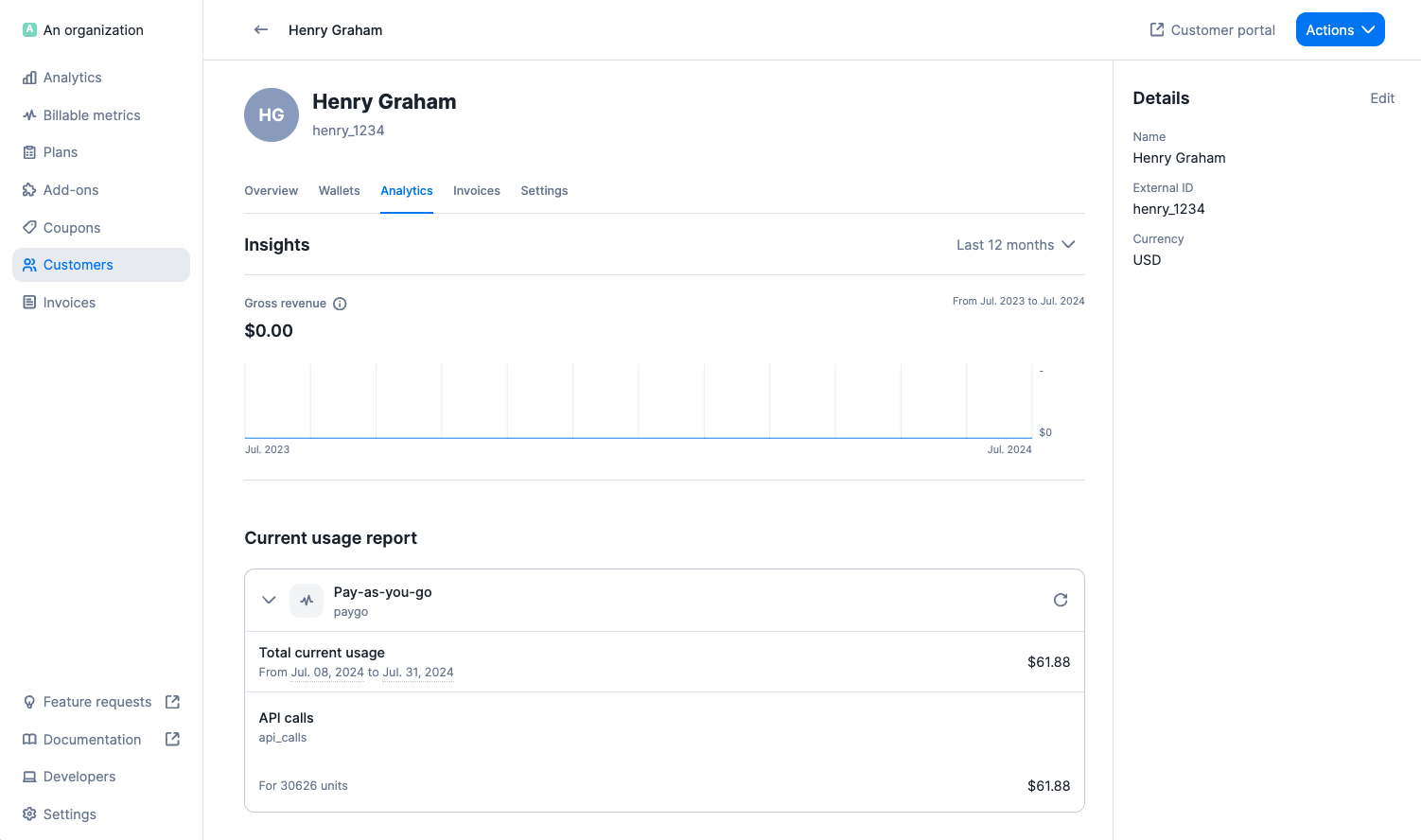
When a plan that includes usage-based charges is assigned to a customer, you can start pushing events associated with the customer account. During the billing period, the customer’s current usage is visible in the “Analytics” tab of the customer view, under “Current usage report”, including (but not limited to):- Total amount for the period under consideration; and
- Breakdown by charge, including total number of billing units and amount.
- Dashboard
- API
Fetch customer's current usage
Monitor the customer’s billing status
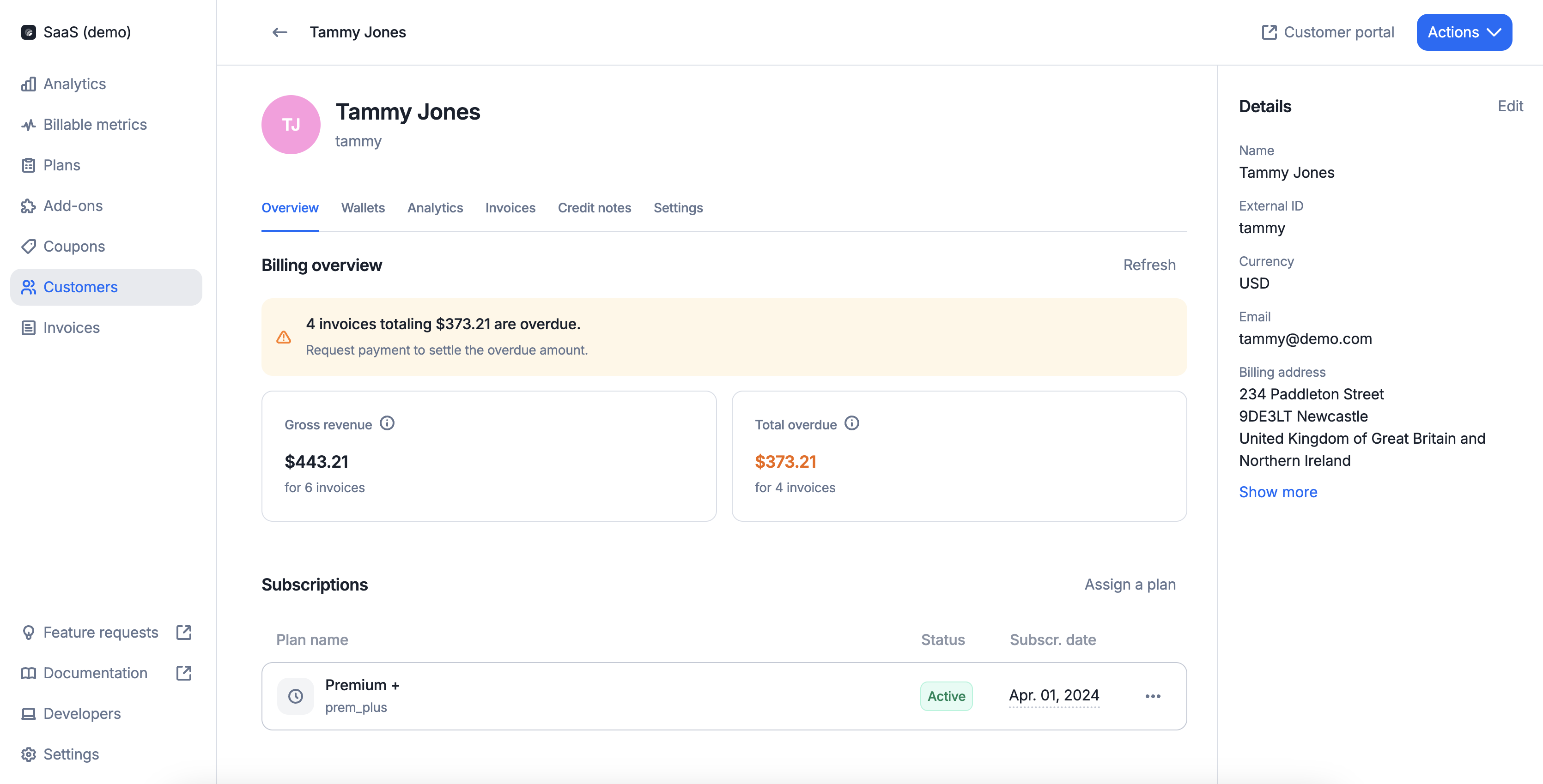
The “Billing overview” lets you see at a glance where a customer stands in terms of revenue and collection. It takes into account invoices since the customer’s creation date.- Gross revenue indicates how much has been billed to this customer
- Total overdue highlights the aggregated amount from invoices that are past due
- Dashboard
- API
Check a customer's billing status
Deleting a customer
You may delete a customer linked to existing objects (i.e. applied coupons, wallets, subscriptions, add-ons). If you do so:- All active subscriptions associated with this customer account are terminated immediately (this action may trigger the generation of invoices and/or credit notes);
- All
pendingsubscriptions are canceled; - All coupons applied to this customer account are terminated immediately;
- The customer’s active wallets are terminated immediately and all remaining credits are voided; and
- All
draftinvoices associated with this customer account are finalized.
finalized invoices and credit notes associated with the deleted customer remain available in the “Invoices” section of the user interface and can also be retrieved via the API.
It is possible to generate new credit notes and process refunds after the deletion of the customer.
After deleting a customer account, you can create a new one using the same
external_id.